Your first signature step by step
Your first signature step by step
This guide takes you through your first signature in Autogram. You need no experience, just follow the steps. Some steps appear only with some cards. If a step does not appear for you, go on to the next one.
Before you start
Have ready:
- Autogram installed on your computer. If you do not have it yet, see Installation.
- A card with a signing certificate, for example a Slovak ID card with a chip, and its software. For the Slovak ID card, that is the eID client. See Cards and certificates.
- A card reader, unless your computer has one built in.
- The card’s PINs. For the Slovak ID card, these are the BOK and the signing PIN.
First issue the signing certificates in the eID client. You cannot sign with the card without them.
1. Insert the card into the reader
Connect the reader to your computer and insert the card, chip first. If your card is a USB key, plug it directly into the computer.
2. Open the document in Autogram
The document gets into Autogram in one of two ways. Choose the one that applies to you.
You are signing on a website
This is how most people use Autogram, for example on slovensko.sk or in an application of their authority or company.
- On the website, click the button to sign.
- If the website asks Ako si prajete dokument podpísať? (how do you want to sign the document), click Podpísať v tomto počítači (sign on this computer).
- If your browser asks whether to open the Autogram application, allow it.
- Wait. Autogram opens and shows the document by itself.
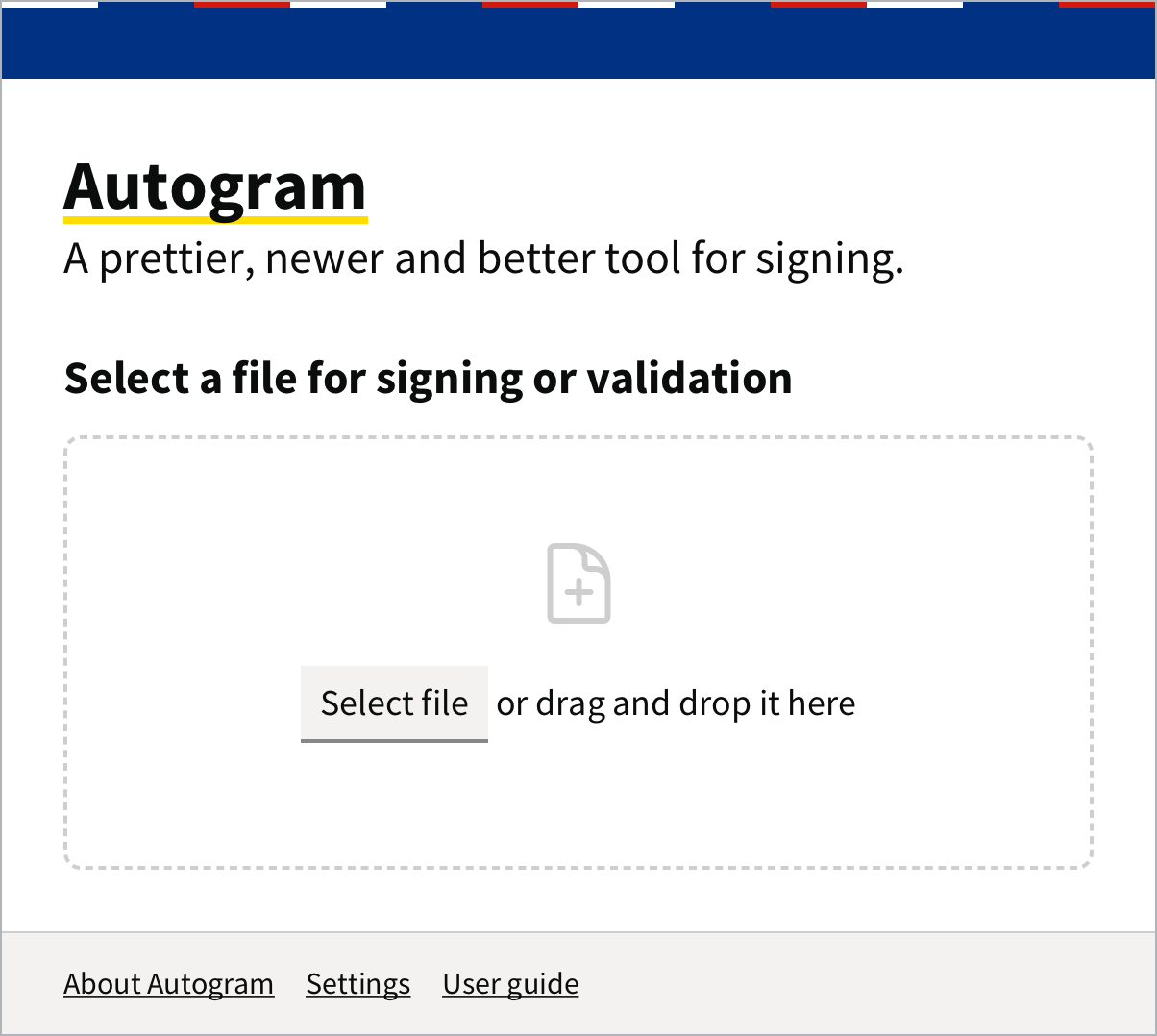
If Autogram was not running yet, only its main window with the Select file button appears at first. Do not open anything in it. Wait a few seconds, the website sends the document to Autogram by itself.
On government websites, such as slovensko.sk, you also need the browser extension. See Signing on websites.
You are signing a file from your computer
- Start Autogram. On Windows, you find it in the Start menu, on a Mac in the Applications folder.
- Click Select file and choose the document. Or drag it into the window with the mouse.
3. Look through the document
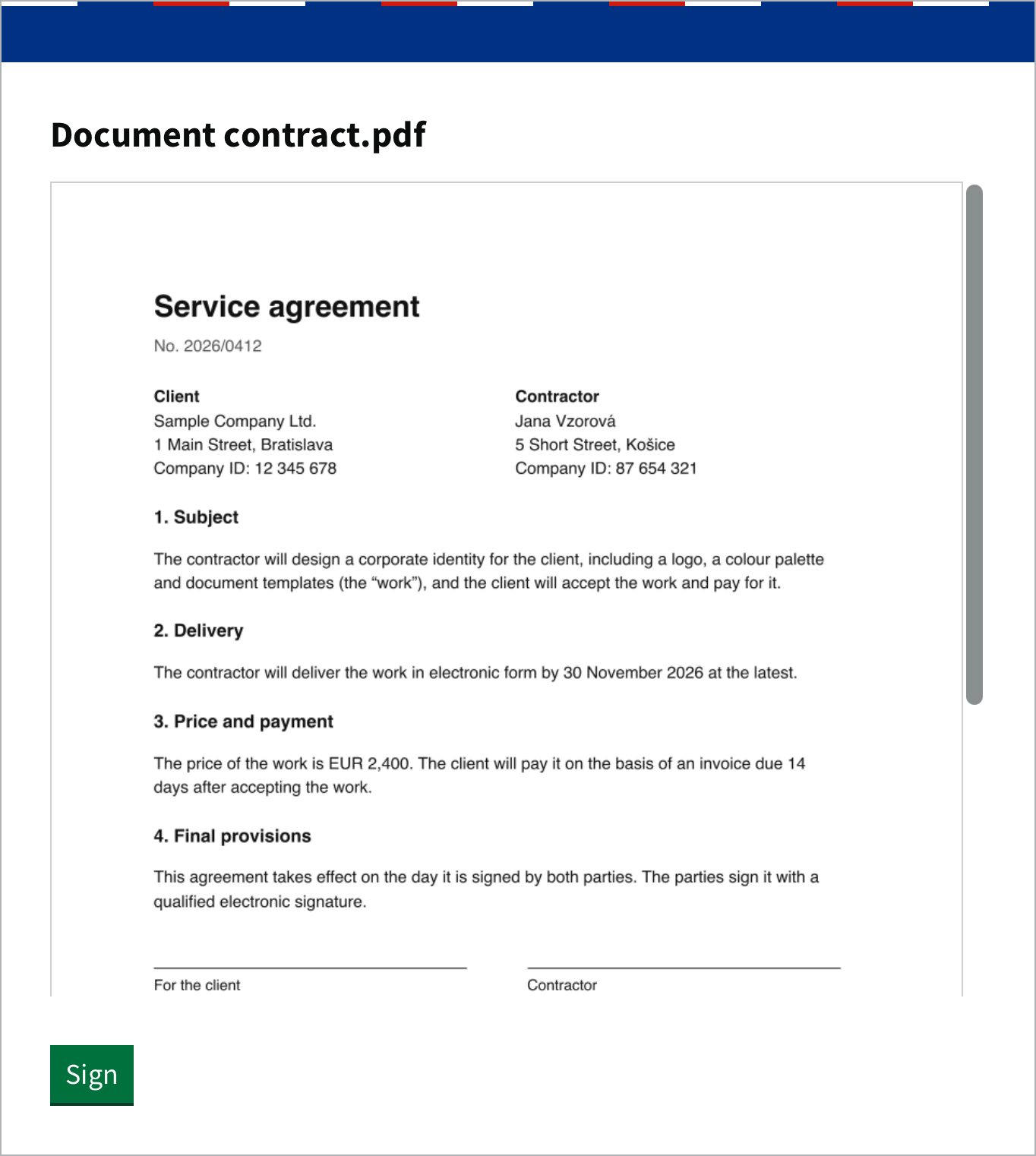
Autogram opens the document in a new window. Read all of it, you sign exactly what you see. Scroll through a longer document with the mouse wheel.
4. Click Sign
The Sign button is below the document. No signature is made until you enter the PIN. If you change your mind, simply close the window.
5. Choose the card
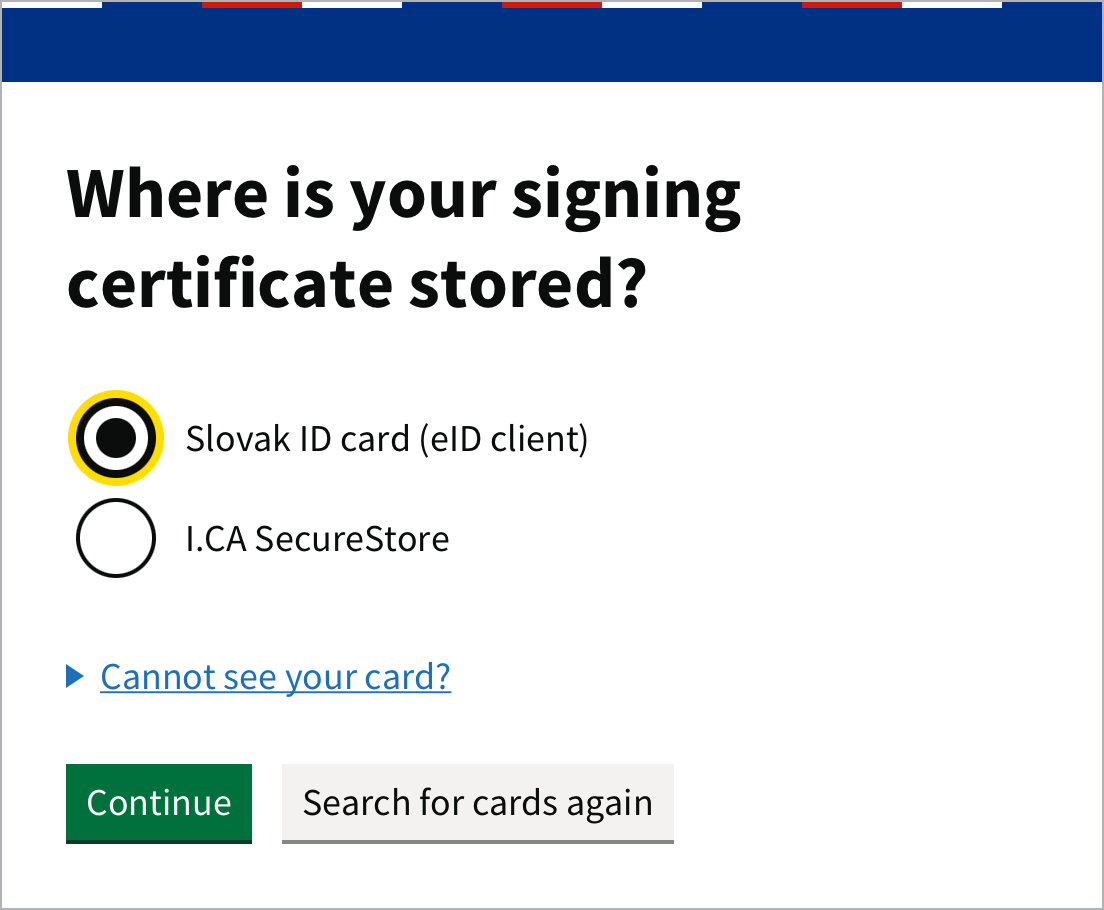
If only one card is connected, Autogram uses it by itself and this step does not appear.
If the question Where is your signing certificate stored? appears, click your card and then Continue.
6. Enter the card’s code
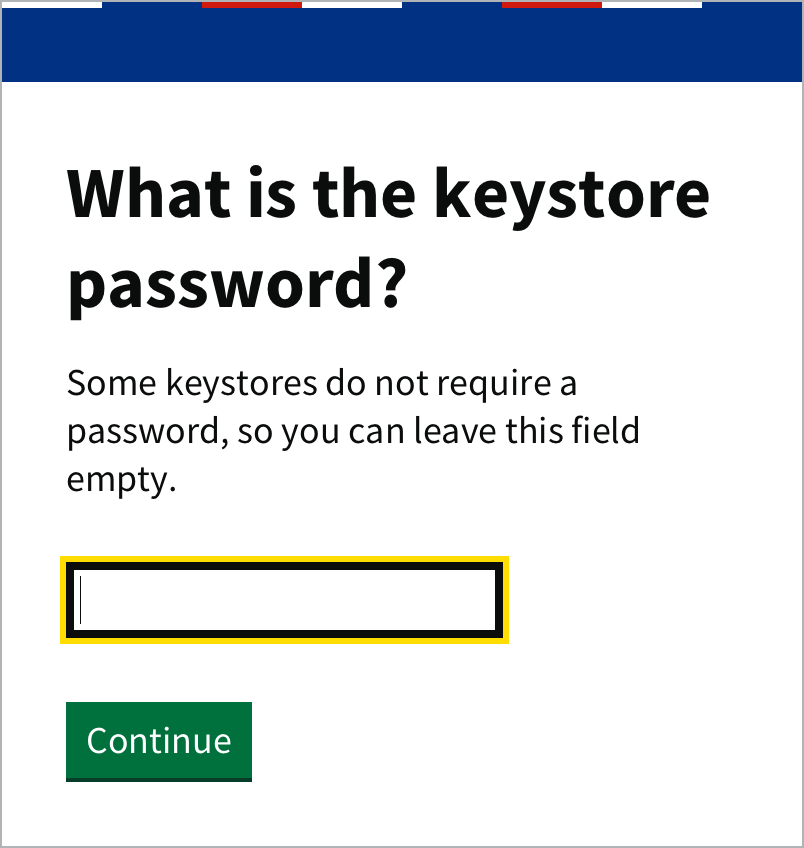
With some cards, Autogram asks What is the keystore password?
- If your card has such a code, enter it and click Continue.
- If it does not, leave the field empty and click Continue.
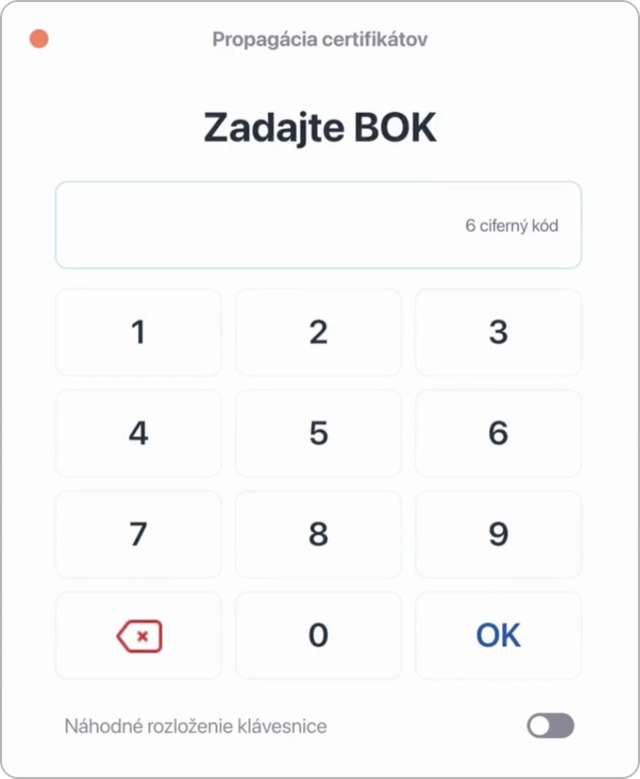
With the Slovak ID card, the eID client’s window opens instead. Enter your BOK in it.
7. Choose the certificate
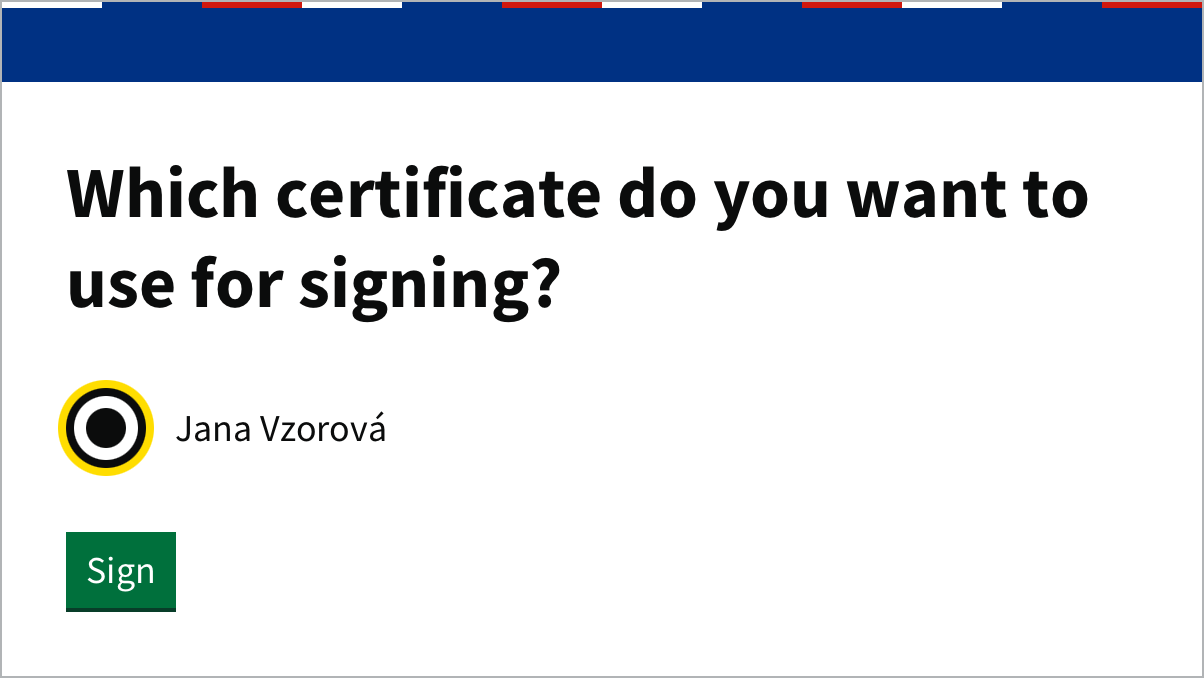
Click the certificate with your name and then Sign.
8. Enter the signing PIN
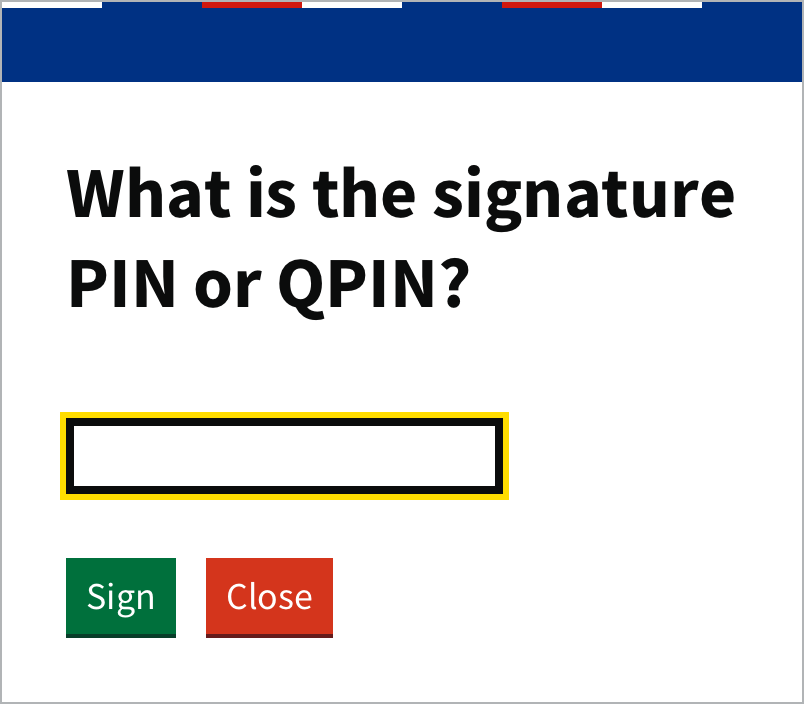
Enter the signing PIN, which some cards call QPIN, and click Sign.
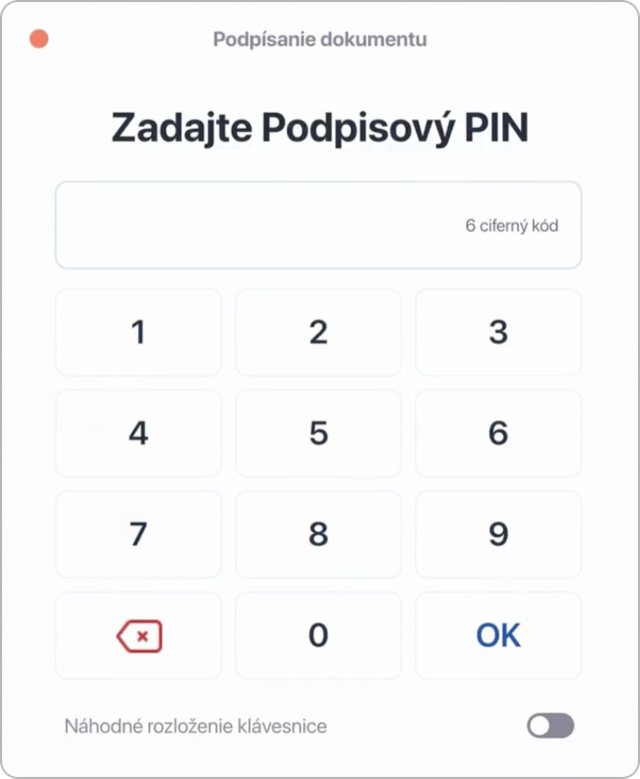
With the Slovak ID card, you enter the signing PIN in the eID client’s window.
A card locks after several wrong PINs. If you are not sure about your PIN, rather cancel signing.
9. Done
On a website: Autogram returns the signed document to the website and its window closes. Continue on the website, for example by sending your submission.
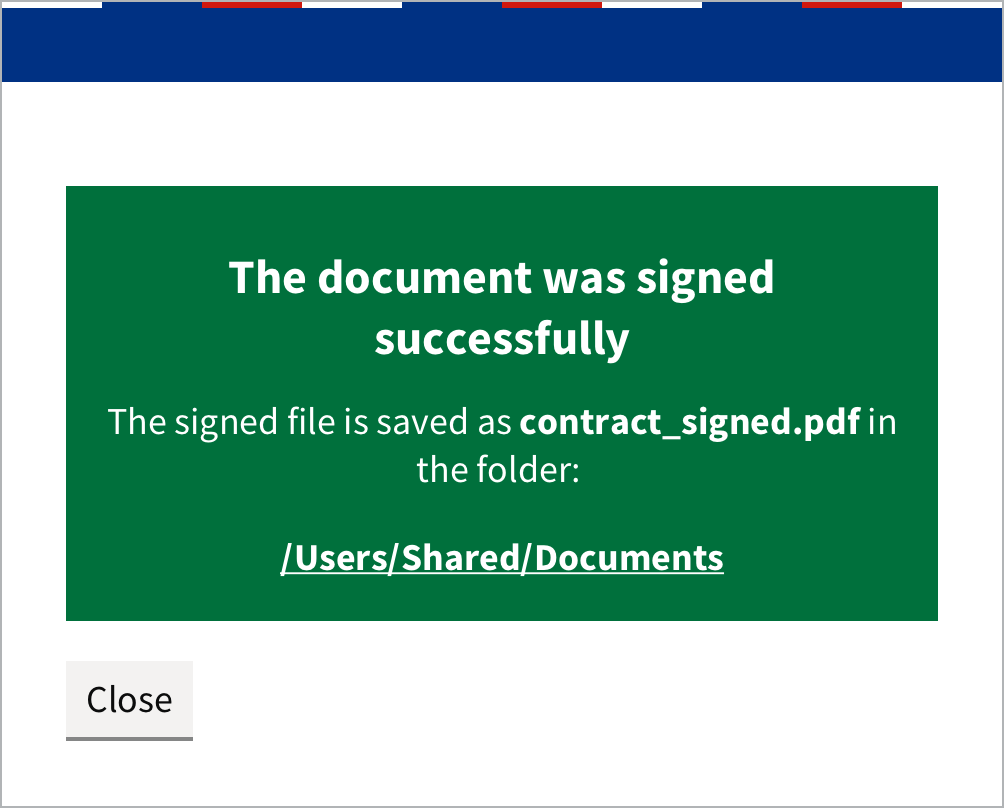
A file from your computer: Autogram saves the signed file in the same folder as the original document, with _signed at the end of its name. Click the path to open the folder.
What next
- You sign the next document faster. Autogram remembers the card and the certificate, just click Sign as … with your name.
- Do you need to sign several documents? You enter the PIN only once for all of them. See Several documents at once.
- Do you want a signature with a timestamp, which you do not have to get certified by a notary? See Signature with a timestamp.
- Something does not work? See Troubleshooting.