Verifying signatures
Verifying signatures
Autogram validates the signatures on every document you open. You need no card or certificate for that, only an internet connection.
Verifying a document
- Start Autogram and click Select file, or drag the signed file into the application window.
- The Signatures on document section appears below the preview. While validation is running, the signatures show Validation in progress….
- After validation you see the signer’s name and the result for each signature.
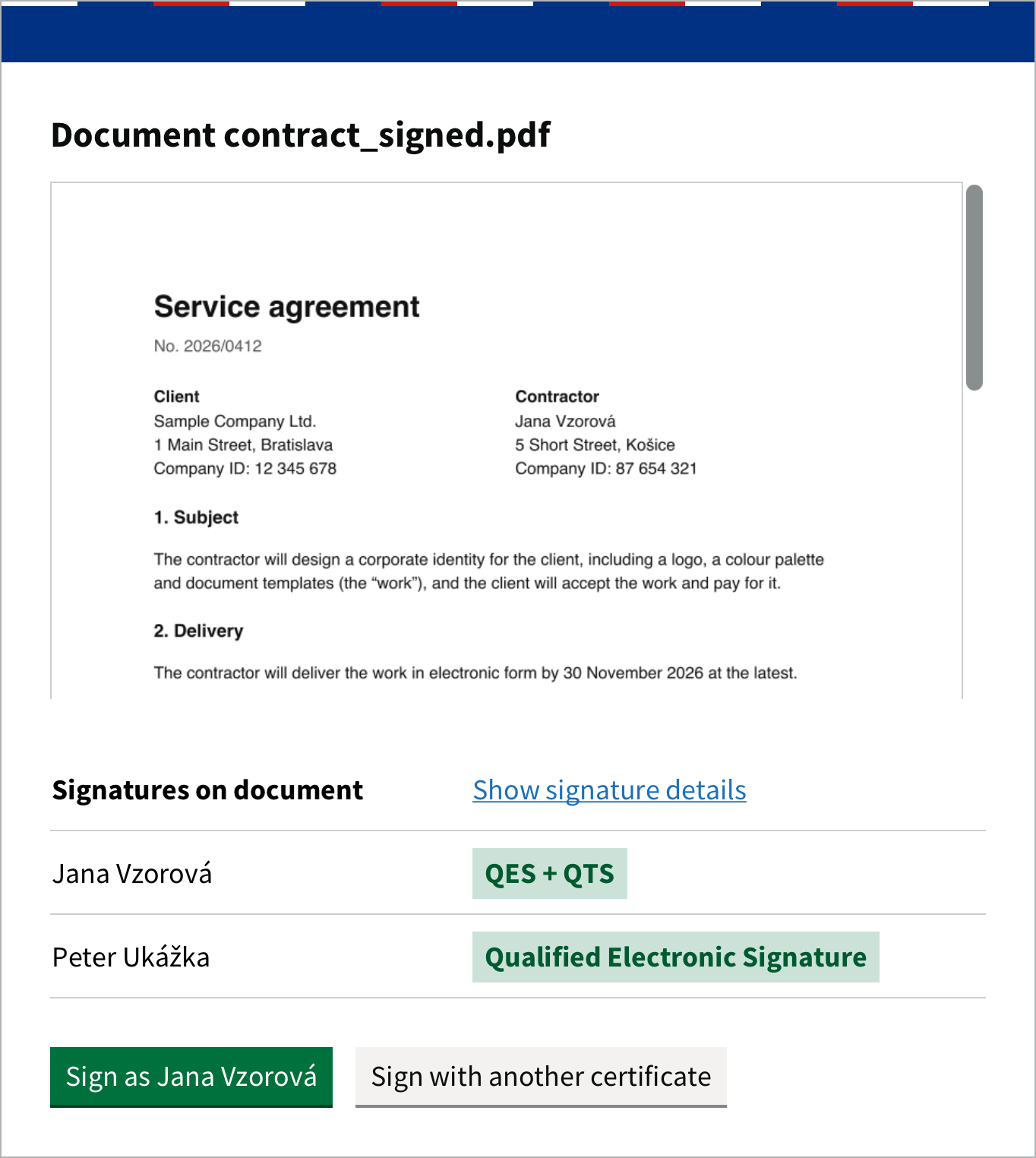
You can verify signed PDFs and ASiC-E containers (.asice). For a container with several documents, the signatures of the document in the selected tab are shown, see Several documents in one container.
If the document has no signatures, Autogram shows The document contains no signatures. If you only want to verify a document, you do not have to sign it: just close the window.
What the results mean
| Result | Meaning |
|---|---|
| Qualified Electronic Signature | A qualified electronic signature. It has the same legal effect as a handwritten signature on paper. |
| QES + QTS | A qualified electronic signature with a qualified timestamp. Under the Slovak Civil Code, it does not have to be certified, for example by a notary. See Signature with a timestamp. |
| Electronic seal | A qualified electronic seal. It is not made by a person but by an organisation, such as a public authority. |
| Advanced Electronic Signature | An advanced electronic signature that is not qualified. If it is based on a qualified certificate, Slovak e-government recognises it as a means of authorisation; otherwise authorities may not accept it. |
| Indeterminate … | The signature cannot be fully validated yet, for example because information about certificate revocation is not available. You can validate it again later. |
| Unknown signature | Autogram cannot verify who made the signature, for example because the certificate was not issued by a trusted provider from the selected countries. |
| Invalid signature | The signature is invalid, for example because the document was changed after signing. |
If a document has an unknown or invalid signature and you want to sign it, Autogram warns you, see Warnings before signing.
Signature details
Click Show signature details. For each signature you see:
- Validation result: Valid, Indeterminate, Invalid or Validation failed,
- Certificate: the signer’s details from the certificate,
- Issuer: who issued the certificate,
- Non-guaranteed signing time: the time according to the signer’s computer, not confirmed by anything,
- Signature type: for example a qualified electronic signature,
- Timestamps: if the signature has any. A timestamp reliably confirms that the signature existed at the given time.
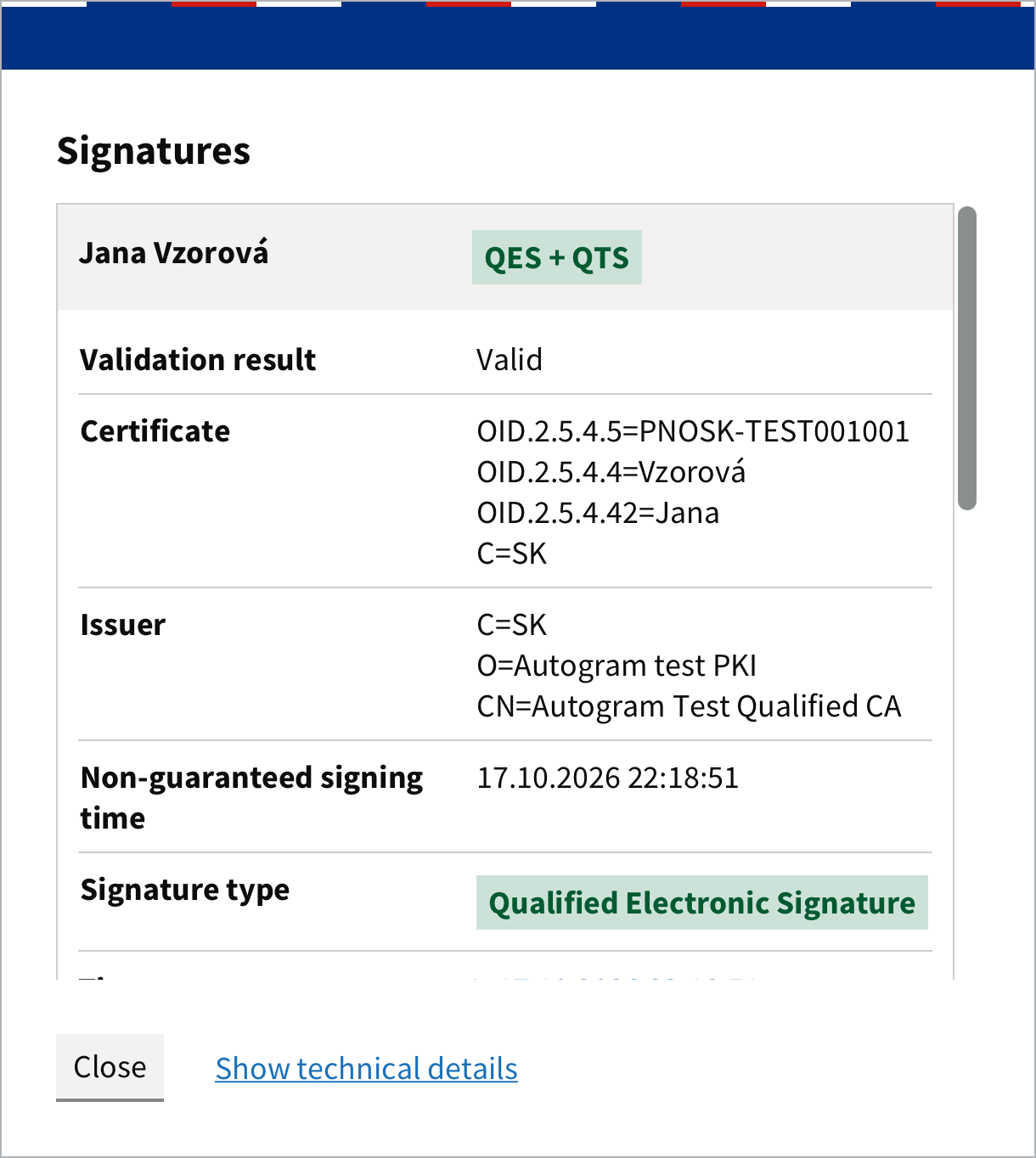
Show technical details opens the full validation report. It is useful when you are solving a problem with a signature together with an expert or support.
Trusted lists
Autogram validates signatures against the European Union trusted lists, which it downloads from the internet. By default it validates signatures with certificates from providers in Slovakia, Czechia, Austria, Poland, Hungary, Belgium, the Netherlands and Spain. You can turn on more countries in Settings. Each additional country slows down validation.
If the trusted lists cannot be downloaded, Autogram shows a warning that the signatures cannot be fully validated. Check your internet connection and open the document again.