Troubleshooting
Troubleshooting
Signing on websites
Only the main window appears after a website started Autogram
That is fine. The website started Autogram and will send it the document in a moment, which then appears in a new window. Do not open anything in the main window. If the document does not appear even after a few seconds, click the button to sign on the website again. See When Autogram is not running yet.
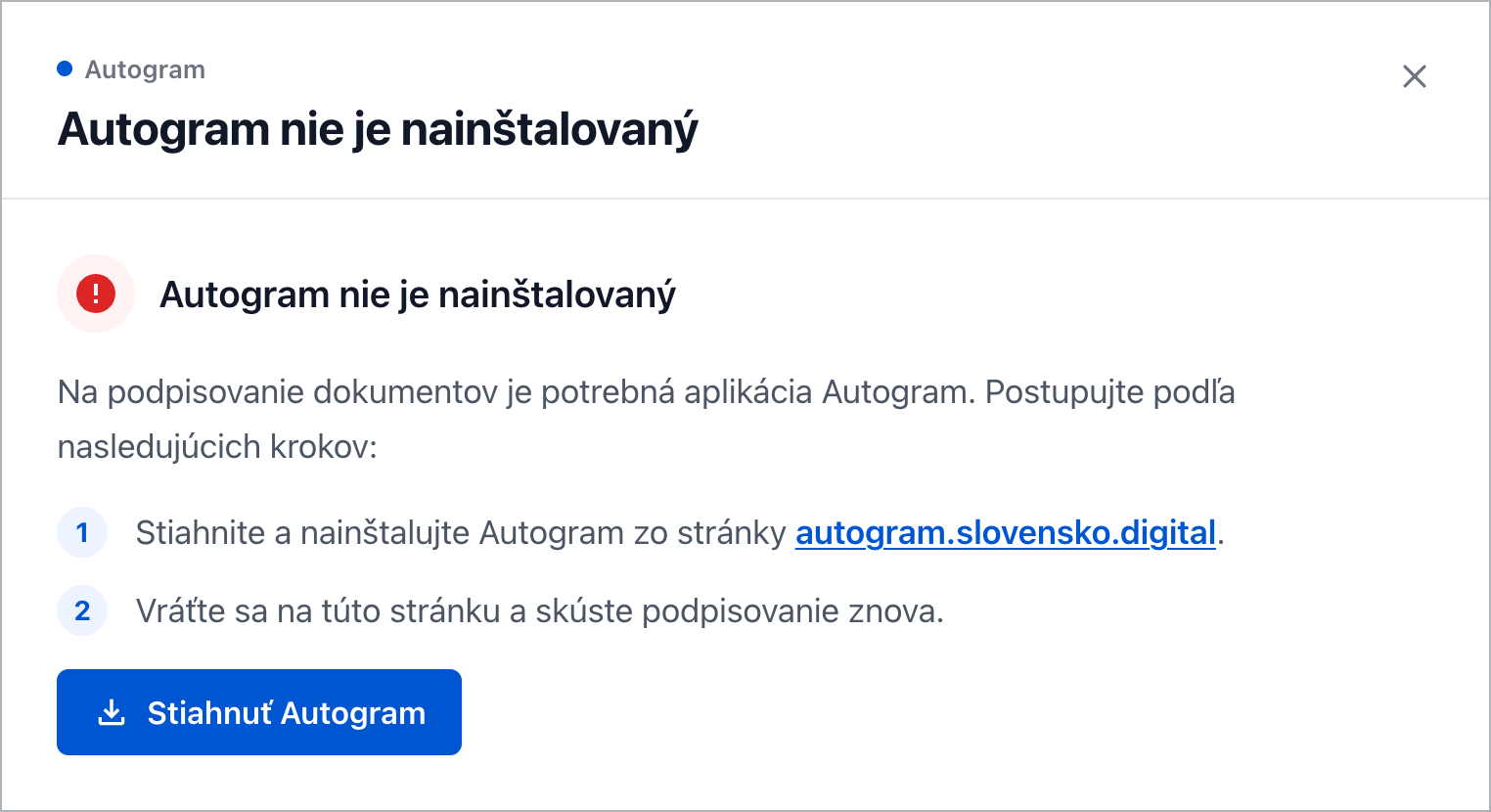
The website says Autogram is not installed
The website could not find Autogram. If you do not have Autogram installed, install it as described in Installation. If you do have it installed, start it yourself, wait for the main window and try signing on the website again.
Restricted mode
If Failed to start server appears at start-up with the Continue in restricted mode button, port 37200, which Autogram uses to communicate with websites, is already used by another program. Most often it is another copy of Autogram that is already running. The window title then shows Autogram (restricted mode).
- Quit all running copies of Autogram and start it again.
- If that does not help, restart the computer.
In restricted mode you can sign files from your computer, but signing from websites does not work.
Cards and PIN
Autogram did not recognise the card
If Autogram shows No card found or does not offer your card, check that:
- the card is inserted in the reader and the reader is connected to the computer,
- the software (driver) for the card is installed.
Autogram recognises only a card whose driver is installed on the computer. You can download it here:
| Card | Software | Download |
|---|---|---|
| Slovak ID card | eID client | slovensko.sk |
| Gemalto IDPrime 940 | SafeNet Authentication Client | snca.gov.sk |
| MONET+ ProID+Q | ProID+ | snca.gov.sk |
| I.CA SecureStore | I.CA SecureStore | ica.cz |
| Czech eObčanka | eObčanka | info.identita.gov.cz |
After installing the driver, click Search for cards again. If the card still does not appear, restart the computer. See Choosing a card and entering the PIN for more tips.
With a new Slovak ID card, first check in the eID client that signing certificates have been issued.
Autogram asks for a keystore password
Some cards have a card code besides the signing PIN. If your card has none, leave the field empty and click Continue. See Keystore password.
Wrong PIN
If Autogram reports a wrong PIN, try entering it again carefully. After several wrong attempts the card locks. Ask the card’s issuer how to unlock it; for a Slovak ID card, use the PUK in the eID client.
Signing with a Gemalto card fails
The qualified certificate on a Gemalto IDPrime 940 card is often in a different slot. Click Sign with another certificate and choose another slot of the card in the list. See Several certificates on one card.
Card communication error on Windows
If The driver cannot be used appears when signing with a Slovak ID card on Windows, the Microsoft Visual C++ Redistributable package is probably missing. Download it from Microsoft’s website; on most Windows computers it is the file vc_redist.x64.exe. Install it and try signing again.
Documents and signatures
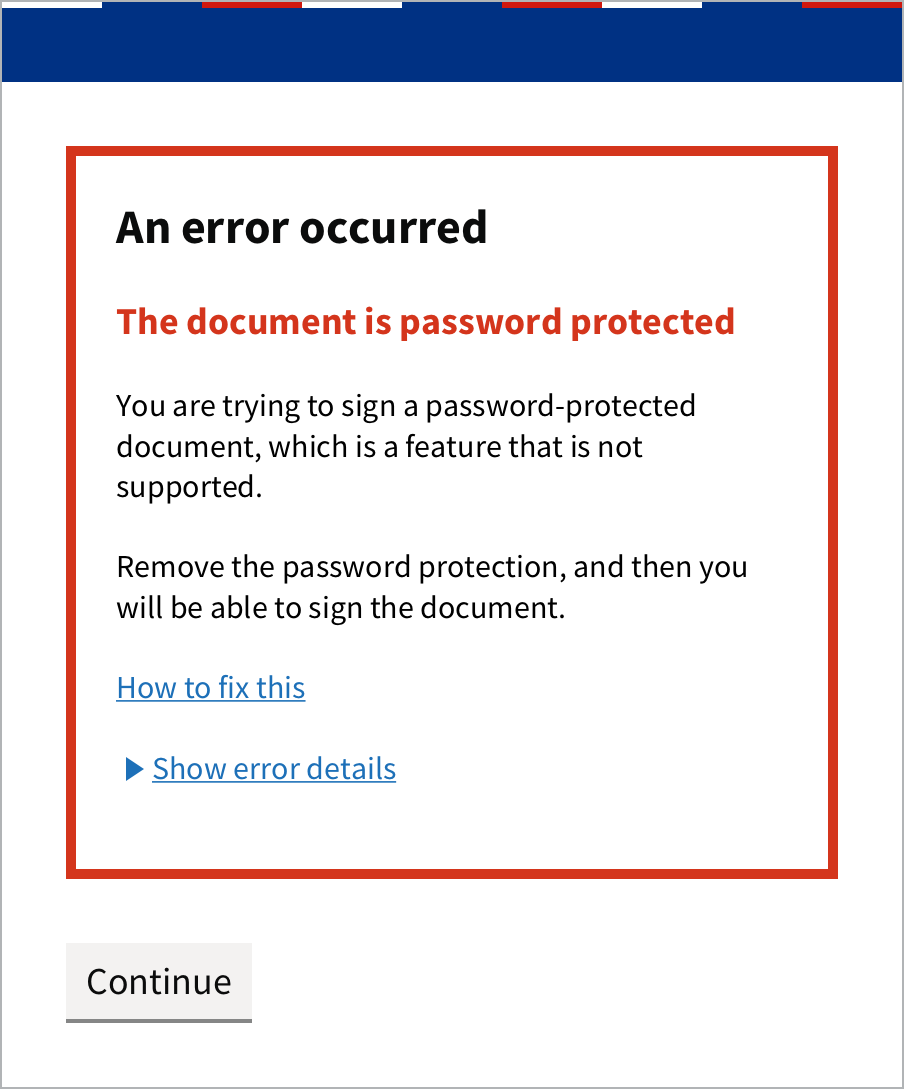
The document is password protected
Autogram cannot sign a password-protected PDF. Remove the password protection, for example in the program you created the document in, and sign it again.
An XML file cannot be signed
By default, Autogram signs only Slovak government XML forms. You can sign other XML files after turning on Signing unknown XML in Settings.
Signatures cannot be validated
If Autogram reports an error while downloading trusted lists, it has no internet access or the server with the trusted lists is unavailable. Check your connection and open the document again. See Verifying signatures.
Installation and updates
Autogram appears twice in the Start menu
Besides the Microsoft Store version, your computer also has an older version from an .msi file. Start Autogram and in the Older version of Autogram window click Uninstall older version. See Moving to the Microsoft Store version.
The older version could not be uninstalled
Uninstalling the older version needs administrator rights. If you did not allow the changes in the Windows window, click Uninstall older version again and allow them. If you are not an administrator of the computer, ask your administrator to uninstall the older version in Windows Settings under Apps.
Microsoft Store is not available
In companies, the administrator sometimes disables Microsoft Store. Ask them to install Autogram, or use the .msi installer from the download page.
It still does not work
Write to us at podpora@slovensko.digital. It helps if you attach a screenshot of the error and the text shown after clicking Show error details.