Signing on websites
Signing on websites
Autogram is most often used for signing directly from websites and web applications. The website sends the document to Autogram, you check and sign it in Autogram, and the signed document goes back to the website. You do not have to download, save or upload anything, and Autogram does not save the signed document anywhere.
If you are signing for the first time, follow Your first signature step by step.
Two kinds of websites
Websites that support Autogram directly
These websites and applications have signing with Autogram built in. You need nothing else besides Autogram. They include, for example:
- Autogram Portal,
- GovBox Pro (guide),
- eGrant,
- the DCOM system used by Slovak municipalities and towns,
and many other web applications of authorities and companies. You click the button to sign and Autogram opens. Some of them first ask whether you want to sign on the computer or on mobile, see Choosing between computer and mobile.
Government websites with the browser extension
Some Slovak government websites were built for older signing applications, such as D.Signer. Autogram works on them thanks to the Autogram na štátnych weboch browser extension, which replaces the older application with Autogram. The extension works, for example, on these websites:
- slovensko.sk, including the electronic mailbox,
- the Financial Administration, for example for filing tax returns,
- the Business Register, electronic filings,
- the Social Insurance Agency, electronic forms,
- the Ministry of Justice portal for citizens,
- the electronic services of the cities of Bratislava and Košice.
How to install the extension:
- Open the page of the Autogram na štátnych weboch extension.
- Choose your browser, for example Google Chrome, Mozilla Firefox or Microsoft Edge, and add the extension.
- If you have the government website open, reload it.
Install the extension in the browser you use for those websites. When you then click the button to sign on such a website, the extension shows the choice between computer and mobile and, after you choose the computer, starts Autogram.
If a government website asks you to install an older signing application, such as D.Signer, install the Autogram extension instead.
How it works
- On the website, click the button to sign.
- Some websites first ask how you want to sign the document. Choose Podpísať v tomto počítači (sign on this computer), see Choosing between computer and mobile.
- If Autogram is not running, the website starts it. Your browser may ask whether to open the Autogram application. Allow it.
- Autogram shows the document in the signing window. If only Autogram’s main window appears at first, wait a moment, see When Autogram is not running yet.
- Check the document and click Sign.
- Choose the card and the certificate and enter the PIN, see Choosing a card and entering the PIN.
- Autogram returns the signed document to the website and the signing window closes. You continue on the website.
When Autogram is not running yet
If Autogram is not running, the website starts it by itself. At first, only Autogram’s main window with the Select file button appears. The document is not there yet.
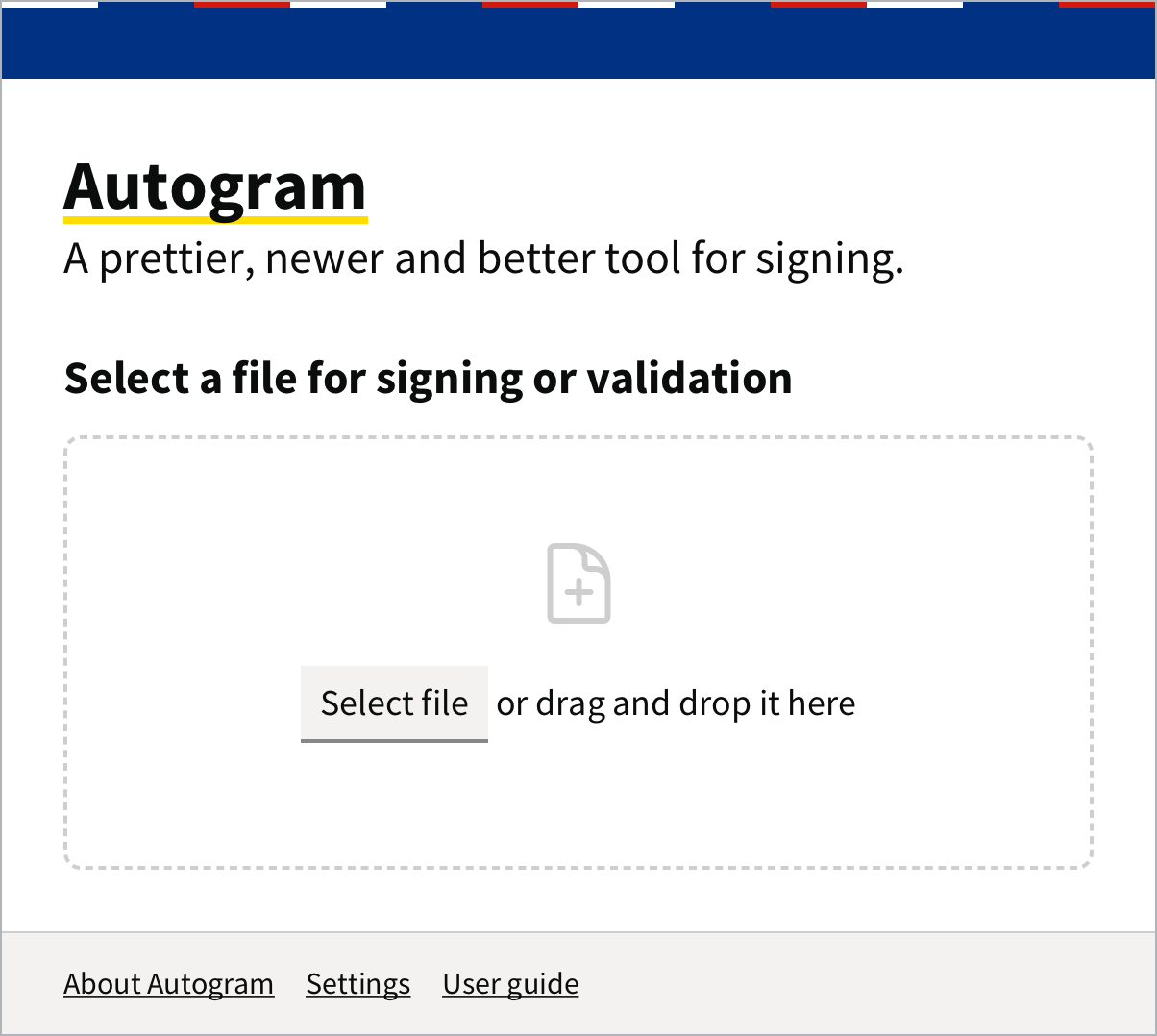
Do not open anything in the main window and do not load a document from your computer into it. Wait a few seconds. The website sends the document to Autogram by itself and Autogram shows it in a new window. If you opened and signed a file from your computer instead, the signed file would be saved on your computer and the website would not get it.
Then leave Autogram running. The next time you sign on the website, the signing window opens right away.
If your browser asks every time whether to open Autogram, tick the option in its prompt that always allows the website to do so. It will not ask again.
Choosing between computer and mobile
Government websites with the browser extension and some websites that support Autogram directly offer two options on the page before signing. The dialog is in Slovak:
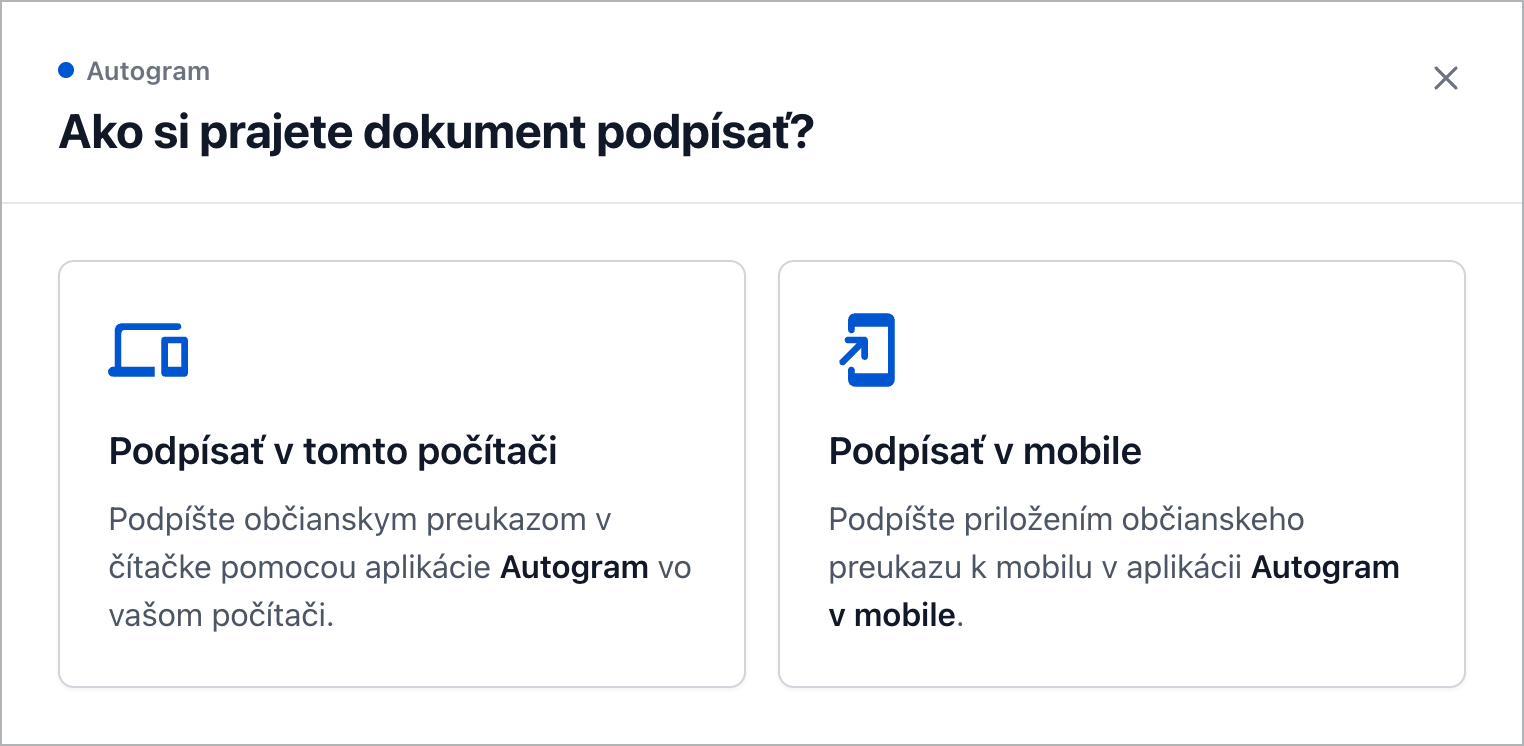
- Podpísať v tomto počítači (sign on this computer): you sign with Autogram and a card in a reader, as this guide describes.
- Podpísať v mobile (sign on mobile): you sign with your ID card held to your phone in the Autogram v mobile app. The website shows a QR code that you scan with your phone.
After you choose Podpísať v tomto počítači, the website checks whether Autogram is running and starts it if not. While you sign, the website shows Prebieha podpisovanie Autogramom (signing with Autogram in progress). Continue in Autogram’s window. If you cannot see it, it may be hidden behind the browser window.
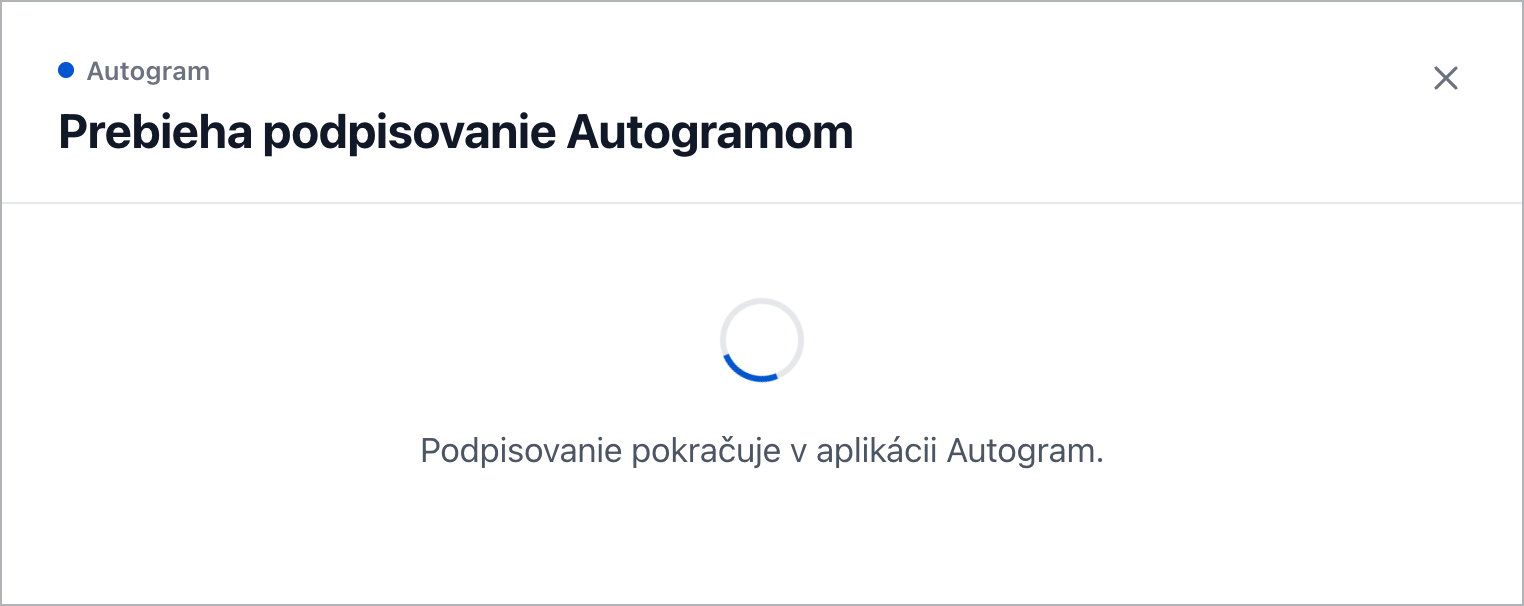
Once you sign the document in Autogram, the website continues by itself. If Autogram is not installed on your computer, the website shows Autogram nie je nainštalovaný (Autogram is not installed) with a download link. Install it as described in Installation, return to the website and sign again.
Several documents from a website
A website can also send several documents to sign at once:
- Each document separately. Autogram asks whether you want to sign them one by one or in bulk. You enter the PIN only once for all documents. See Several documents at once.
- All documents in one container with a shared signature. See Several documents in one container.
Consent to reading certificates
Some websites ask for the list of your signing certificates before signing, for example to offer you the right one. A certificate contains personal data (your name, possibly a personal identifier), so Autogram asks you first.
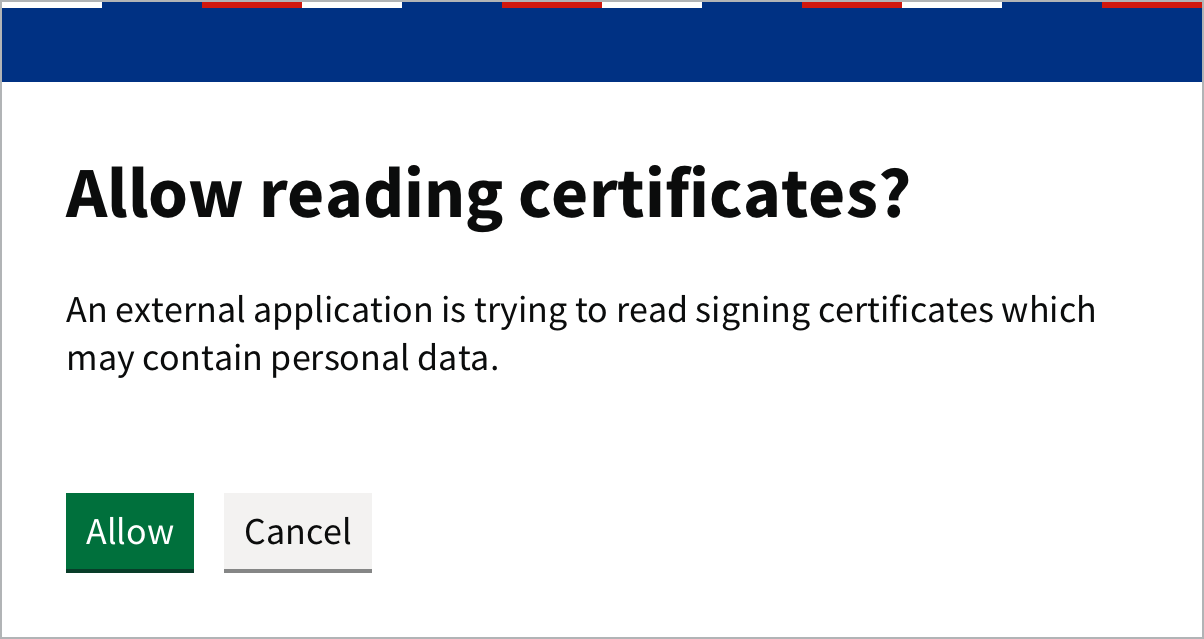
Click Allow only if you trust the website. Cancel keeps your certificates from the website.
If signing from a website does not work
- If Autogram does not start, start it yourself from the Start menu or the Applications folder, wait for the main window and click the button to sign on the website again.
- Check that Enable Autogram API is turned on in Settings. Without it, websites cannot communicate with Autogram.
- If Autogram shows restricted mode in its window title, another copy of Autogram or another program is already running. See Troubleshooting.
- For government websites, check that the Autogram extension is installed and enabled in your browser.