Several documents at once
Several documents at once
To sign several documents, you do not have to open them one at a time. In the main window click Select file and select several files, or drag a whole folder into the window.
You enter the PIN only once, for the first document. Autogram then signs all selected documents without asking for the PIN again, whether there are ten or a thousand. This works both when signing one by one and in bulk, and with all cards, including the Slovak ID card.
Each document gets its own signature and is saved as a separate file.
Choosing how to sign
Autogram asks how you want to sign the documents.
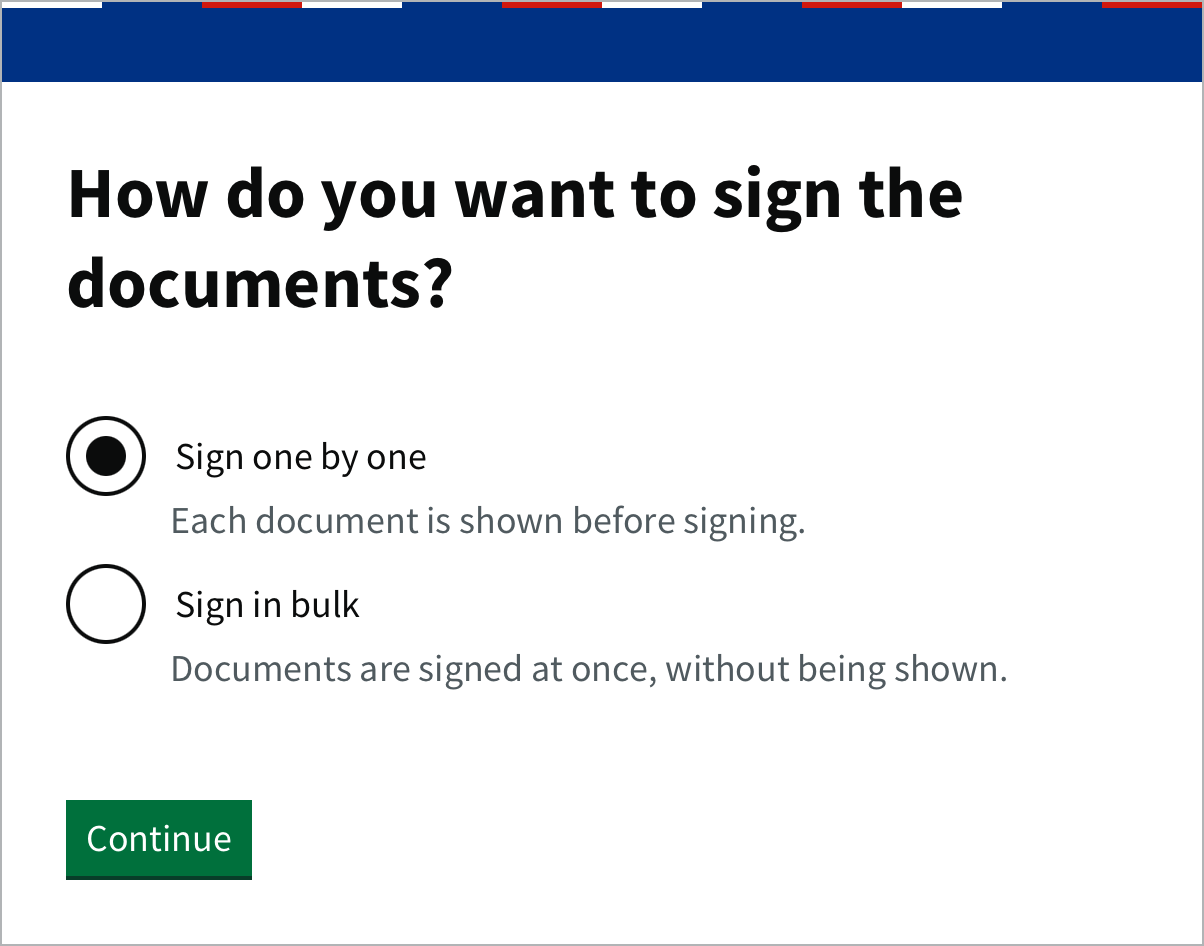
- Sign one by one: each document is shown before signing and you decide whether to sign it. We recommend this if you do not know the documents.
- Sign in bulk: the documents are signed at once, without being shown.
Choose a mode and click Continue.
Signing one by one
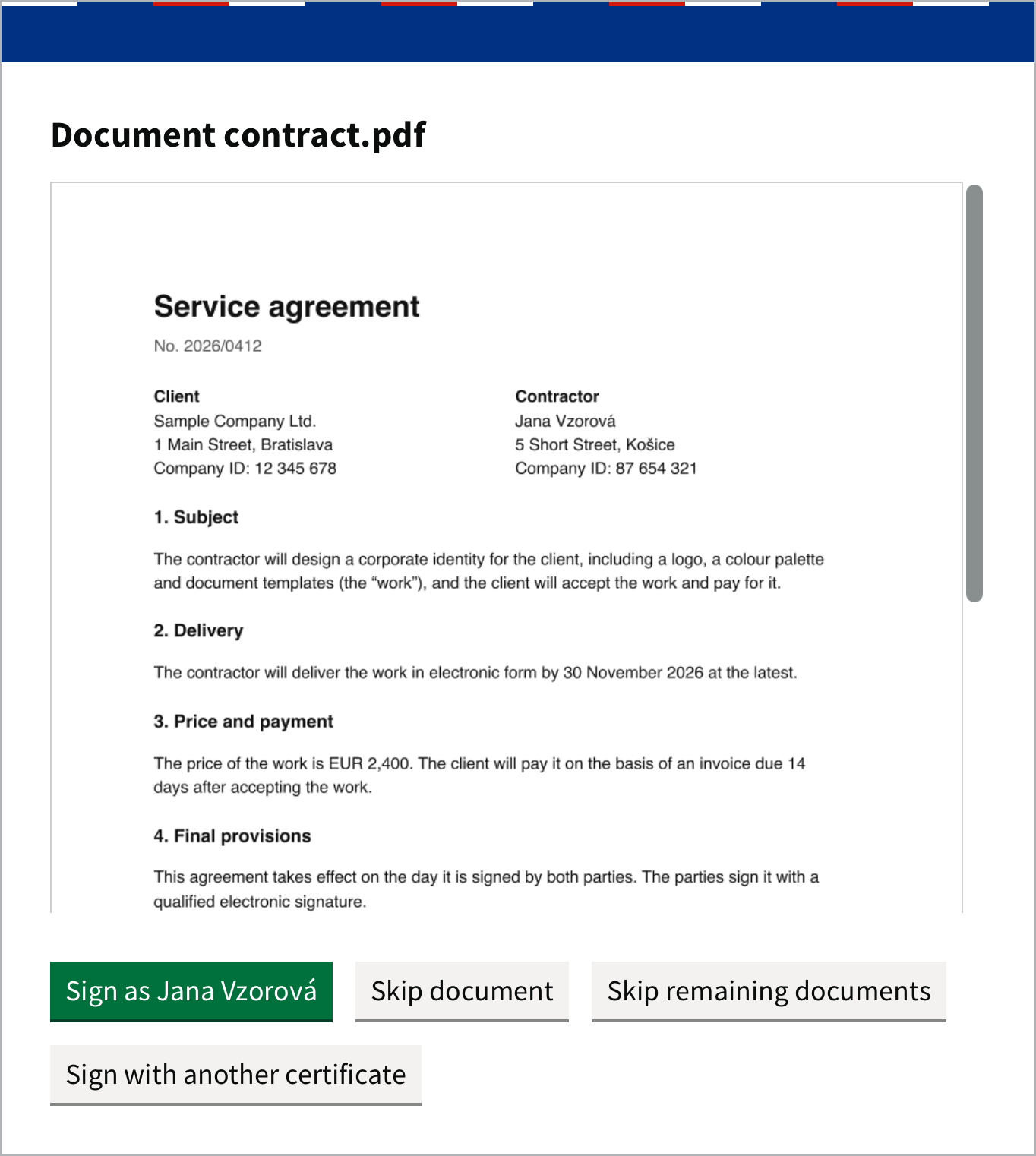
The documents open one after another. For each you can:
- Sign (or Sign as …) signs the document and opens the next one,
- Skip document leaves this document out,
- Skip remaining documents ends signing; documents already signed stay signed,
- Sign with another certificate changes the certificate.
Signing in bulk
Autogram shows how many documents you are about to sign. You do not see the documents themselves.
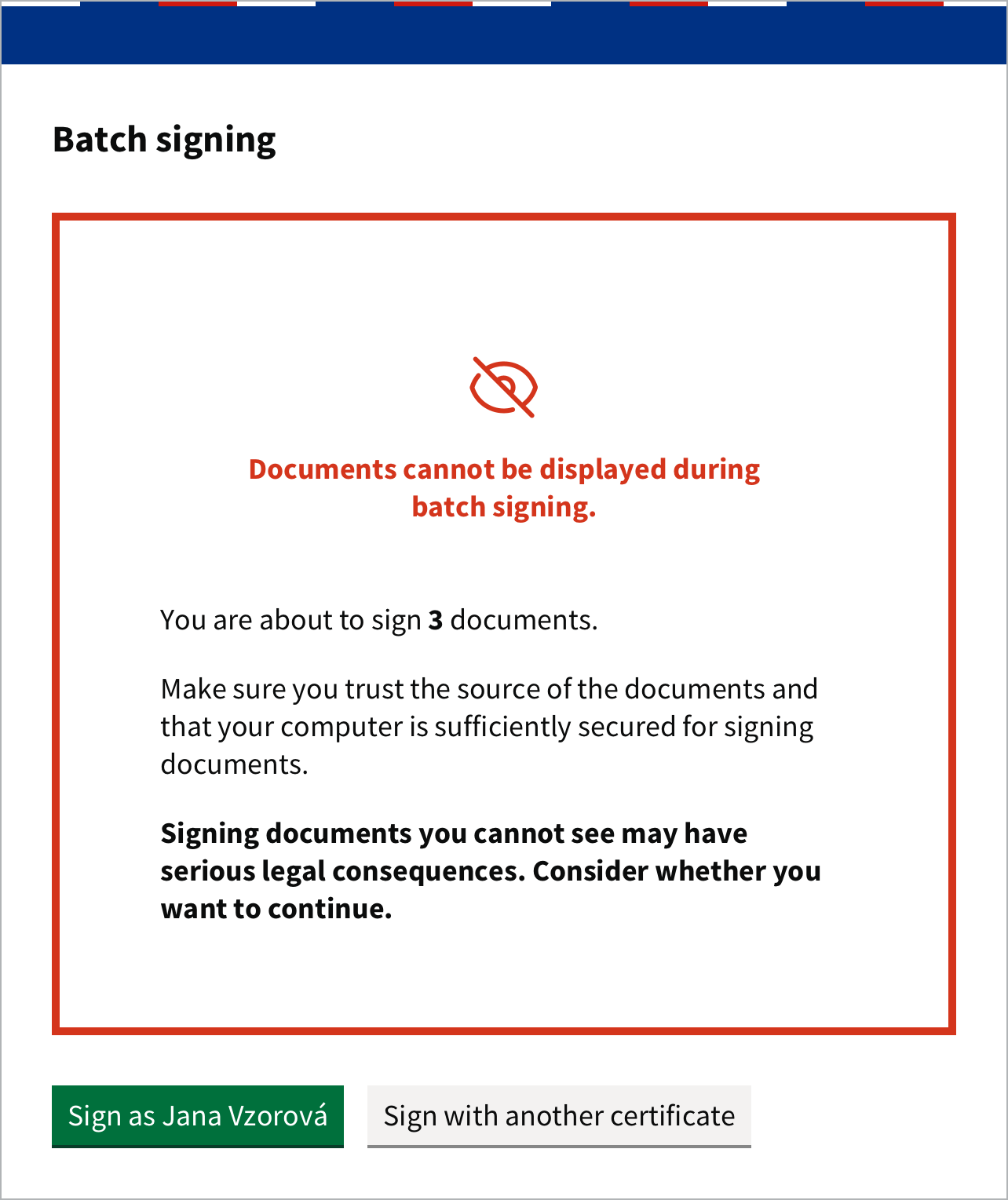
Sign in bulk only documents whose content you know and whose source you trust. Signing documents you have not seen may have serious legal consequences.
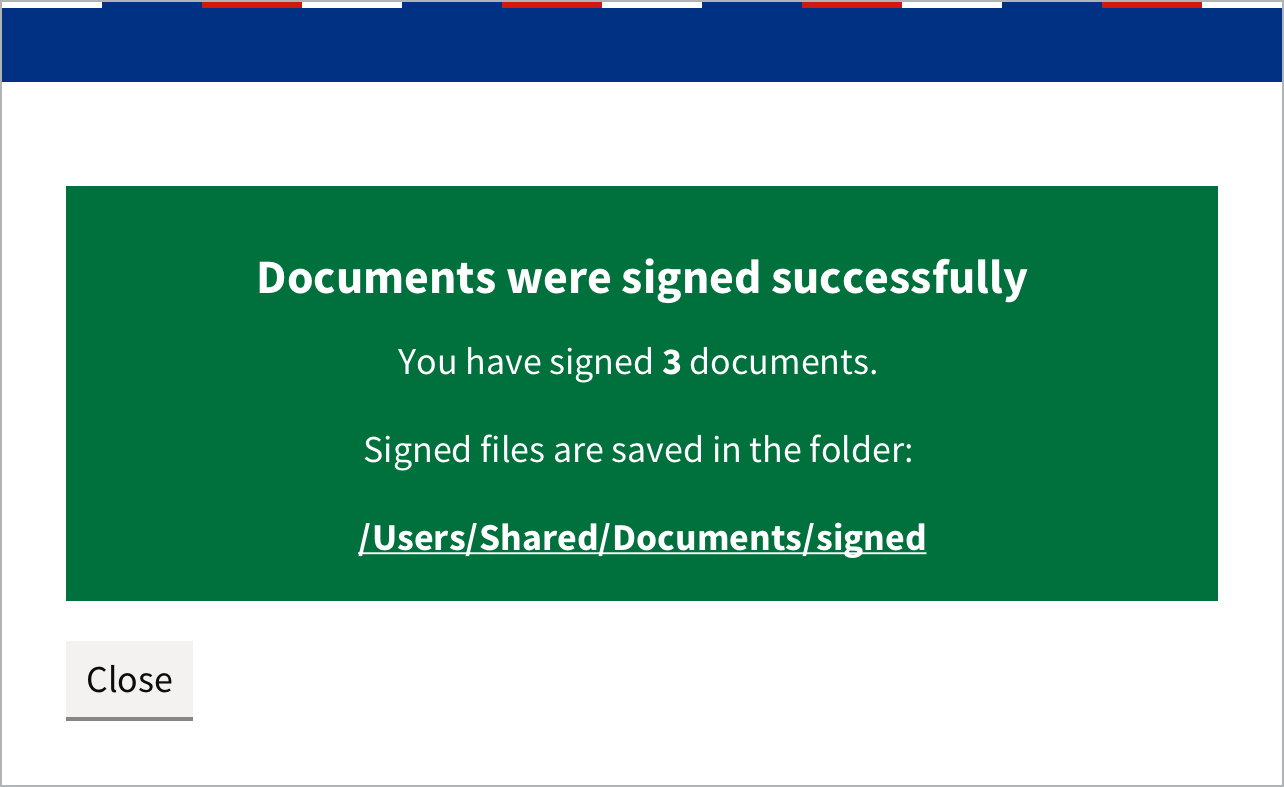
Click Sign and enter the PIN. When it is done, Autogram shows how many documents it signed and where it saved them.
To always sign in bulk, without the question about the signing mode, turn on Force bulk signing in Settings.
Where the signed files are saved
| You selected | You find the signed files |
|---|---|
| several files | in a signed folder next to the selected files |
a folder, for example Invoices |
in a new Invoices_signed folder next to it |
The original files stay unchanged. Signing several folders at once, or a mix of files and folders, is not possible.
When some documents cannot be signed
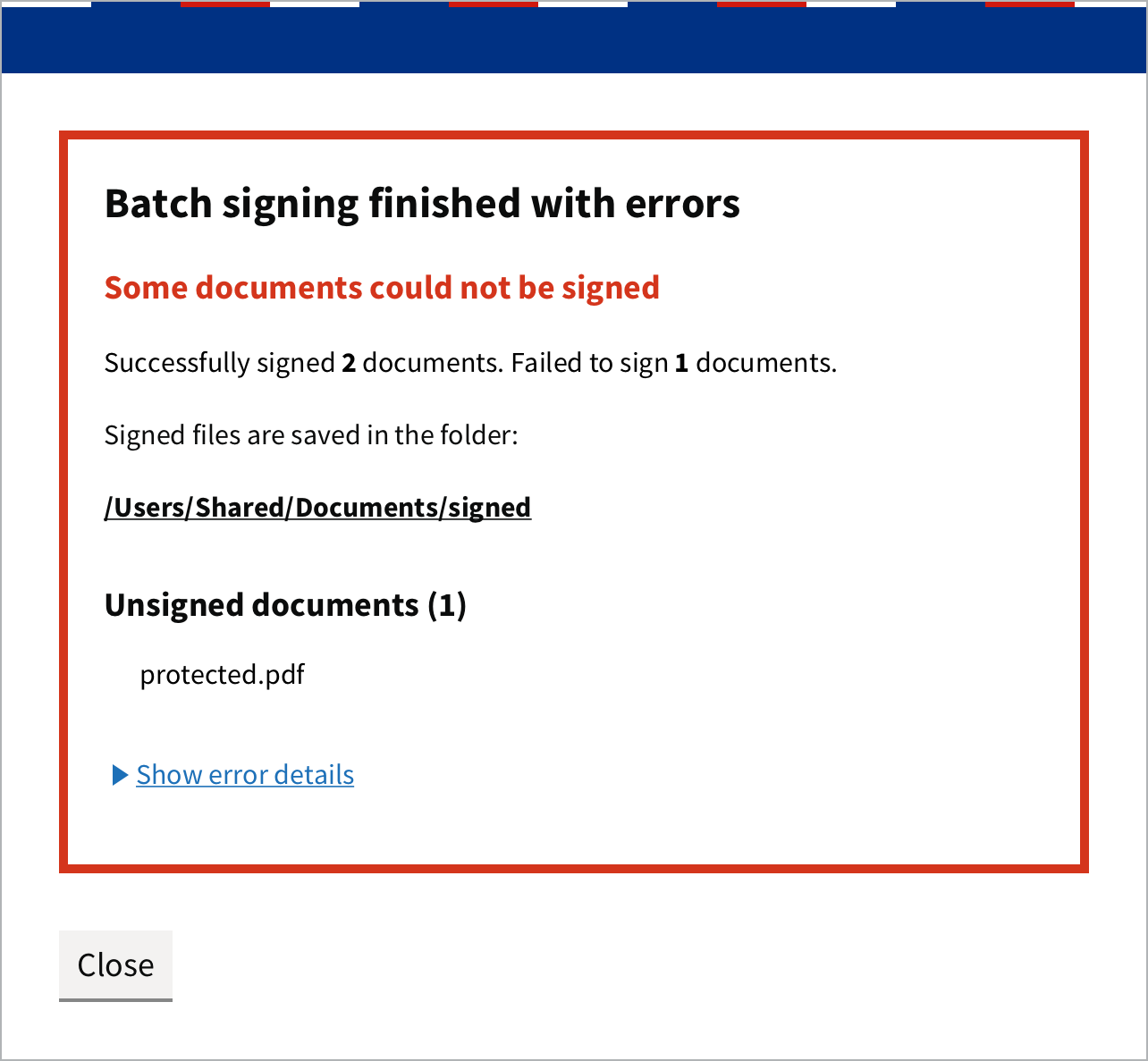
If a document cannot be signed, for example because it is password protected, the others are still signed. At the end Autogram shows which documents were left unsigned. Click Show error details to see why.