Choosing a card and entering the PIN
Choosing a card and entering the PIN
After you click Sign, Autogram finds out where your signing certificate is and asks for the PIN. Depending on your card, you go through some of these steps:
- choosing the card, if there is anything to choose from,
- the keystore password, if your card has one,
- choosing the certificate,
- the signing PIN.
For further documents most of the steps are skipped, see Further signatures.
Choosing the card
Autogram searches all connected readers for cards. If it finds only one card, it uses it without asking and this step does not appear.
Several cards in several readers
You can have several readers connected to your computer at once, for example a built-in reader with your Slovak ID card and a USB reader with a card from your employer. Autogram finds the cards in all of them and asks Where is your signing certificate stored? Choose the card and click Continue.
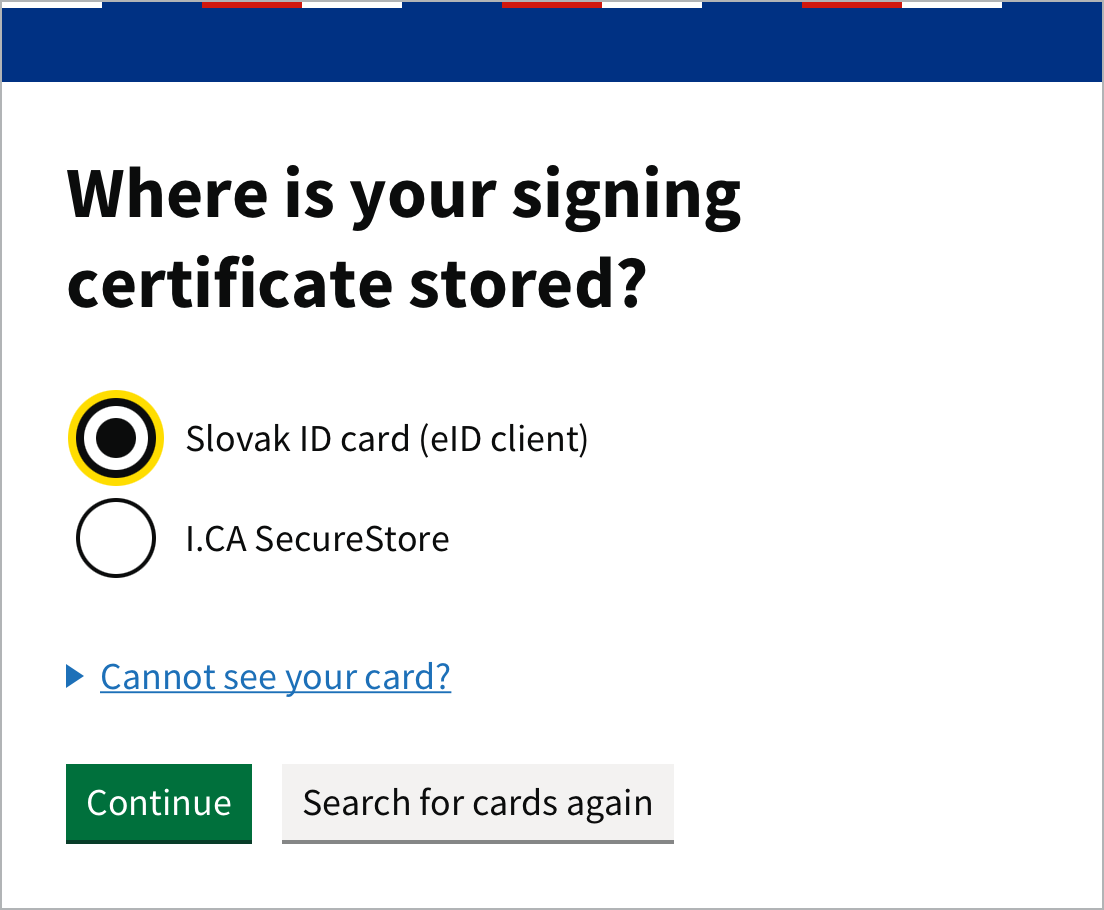
The cards in the list are named after their type, for example Slovak ID card (eID client) or I.CA SecureStore. The card you used last time is preselected.
If two cards of the same type are inserted, for example the ID cards of two people, each shows the reader it is inserted in.
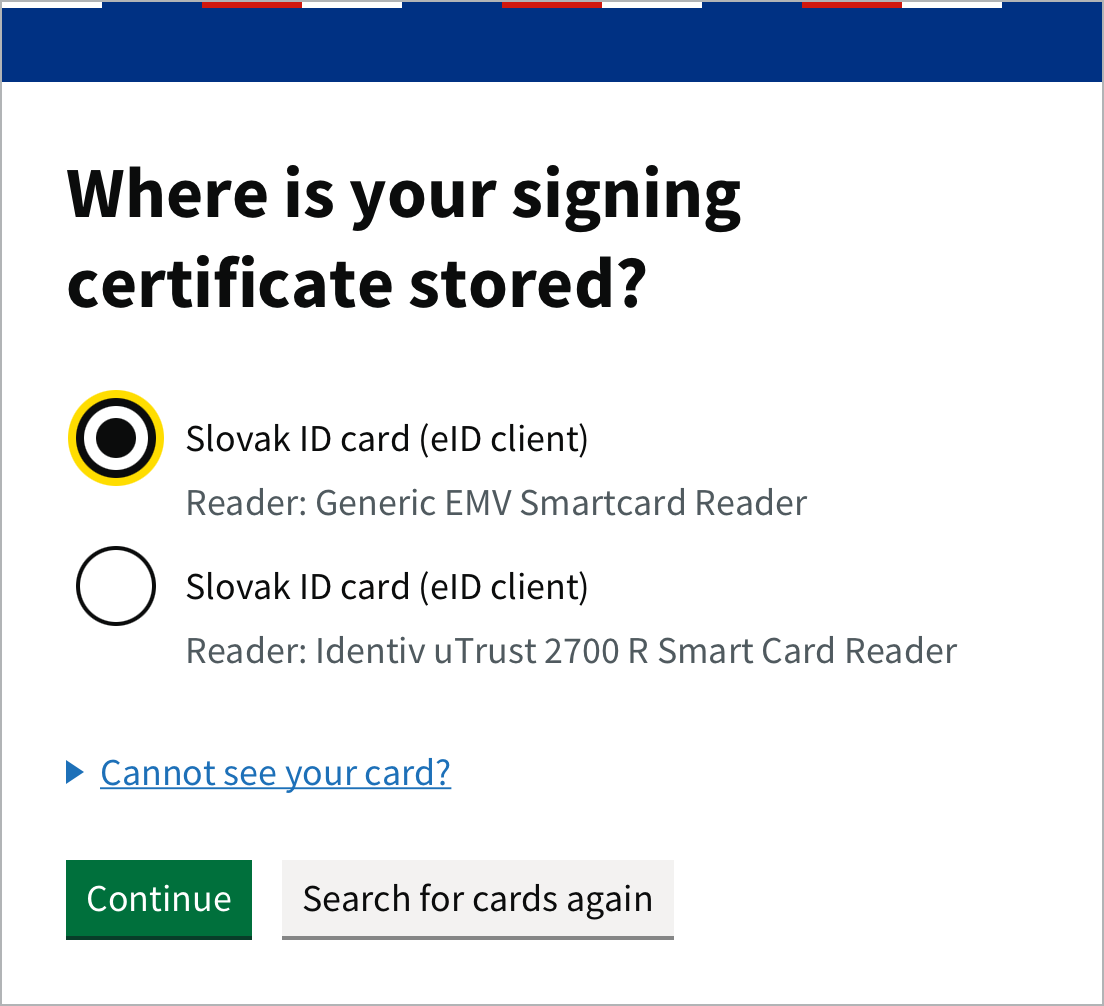
If you cannot tell the readers apart by their names, take out the card you do not want to use and click Search for cards again. Only the other one stays in the list.
Several certificates on one card
Some cards store certificates in several parts called slots. Such a card appears in the list several times and the slots are numbered.
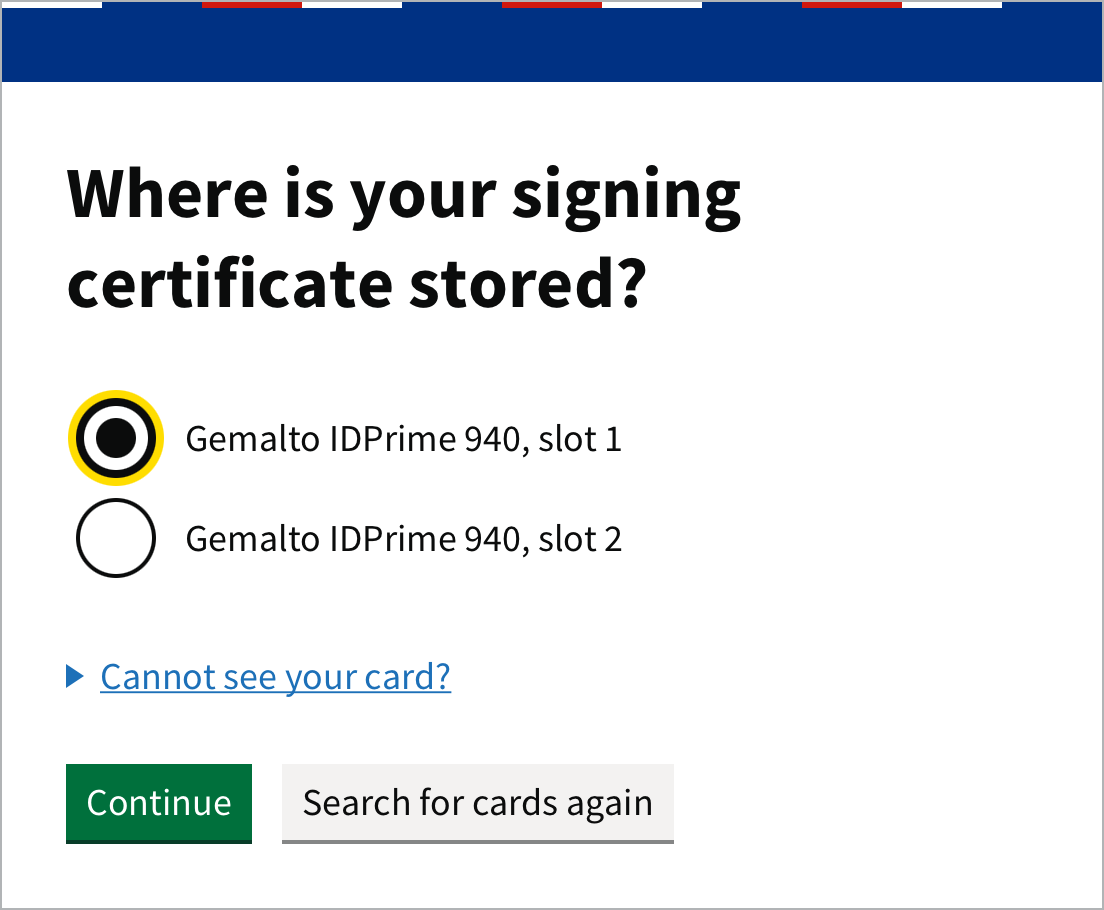
On a Gemalto IDPrime 940 card, the qualified certificate is often in a different slot than the other certificates. If you do not see your qualified certificate after choosing a slot, or signing fails, click Sign with another certificate and choose the other slot.
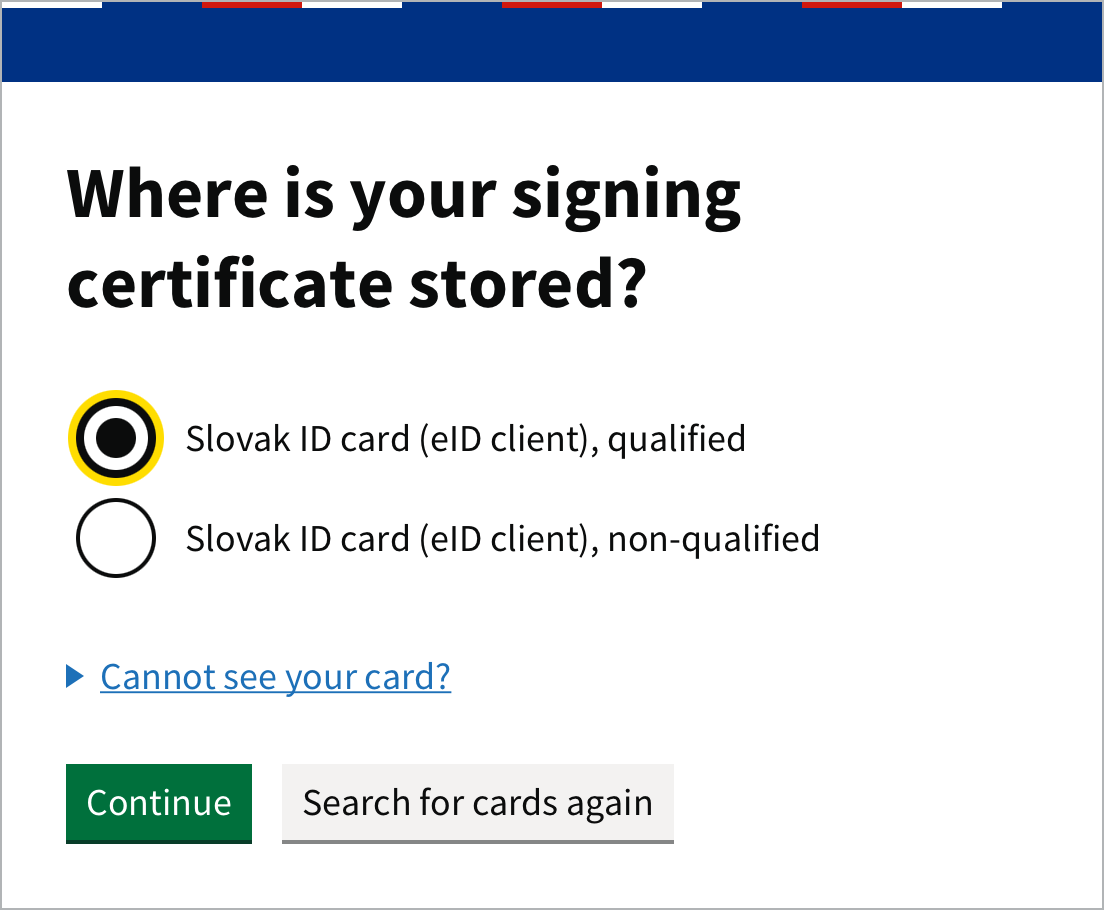
Besides the qualified certificate, the Slovak ID card also holds a second one that is not used for qualified signing. Autogram does not offer it by default. If you turn on Show EP certificate of the ID card in Settings, the ID card appears in the list twice. For ordinary signing, choose qualified. The second certificate is not qualified, so signing with it also needs Allow signing with non-qualified certificates.
Cannot see your card?
If Autogram finds no card, it shows No card found. Check that:
- the card is inserted in the reader,
- the reader is connected to the computer,
- the software for the card is installed, for example the eID client for the Slovak ID card.
Then click Search for cards again. If The card reader is not responding appears, disconnect the reader from the computer, connect it again and search for cards again. If that does not help, restart the computer.
Which software your card needs is described in Cards and certificates.
Keystore password
With some cards, Autogram asks What is the keystore password? after you choose the card. It is the card’s code that unlocks the certificates on the card. Some cards have one, some do not.
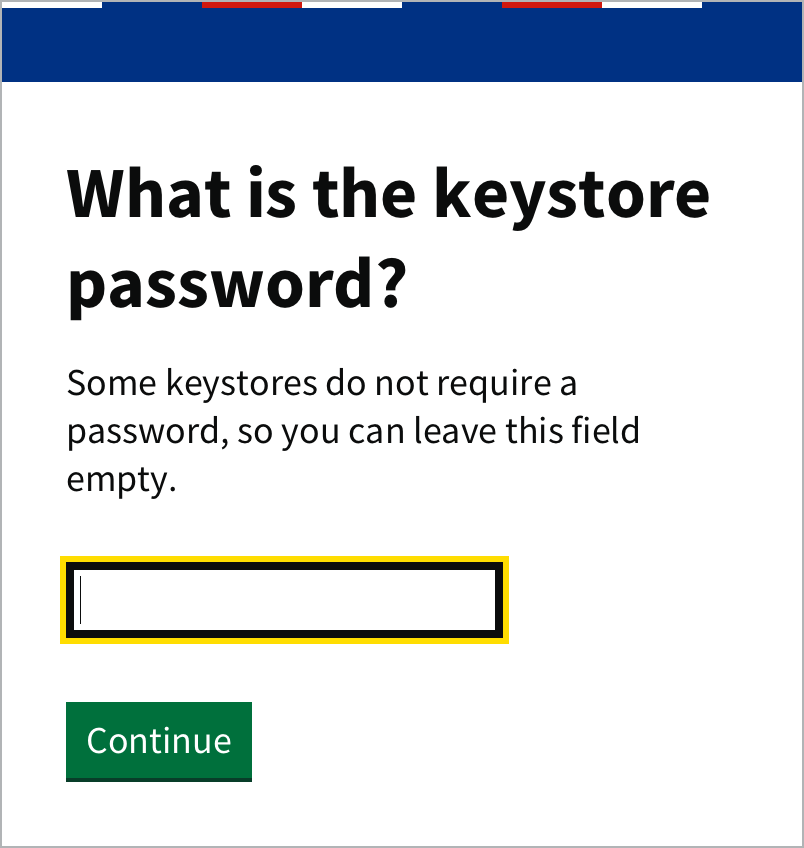
- If your card has such a code, enter it and click Continue. You received it from the card’s issuer together with the other codes.
- If your card has no such code, leave the field empty and click Continue.
This window does not appear for the Slovak ID card. Its code (BOK) is asked for by the eID client, see Slovak ID card.
Choosing the certificate
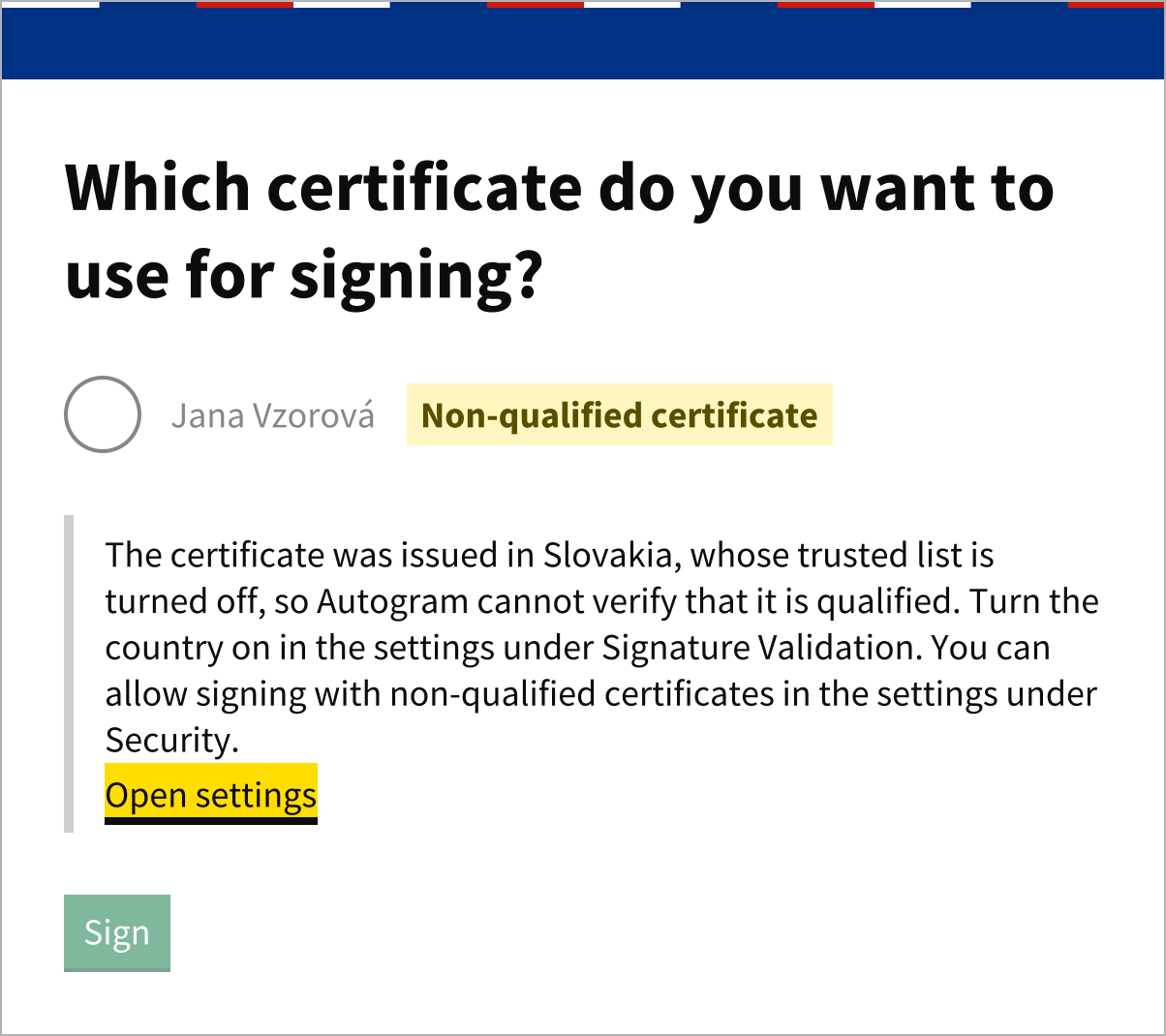
Autogram shows the certificates on the chosen card. Choose the one you want to sign with and click Sign.
It offers only certificates meant for signing. Other certificates on the card, for example one for encryption, are not in the list.
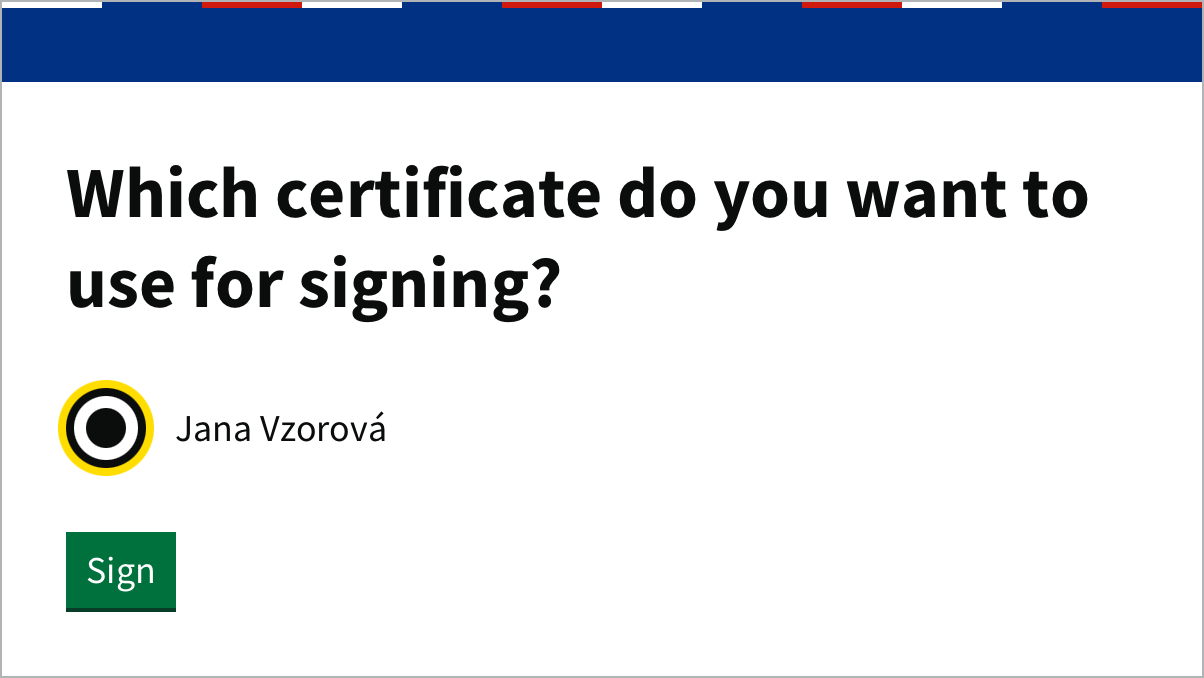
While Autogram checks the certificates, the Sign button is inactive and reads Checking certificate validity….
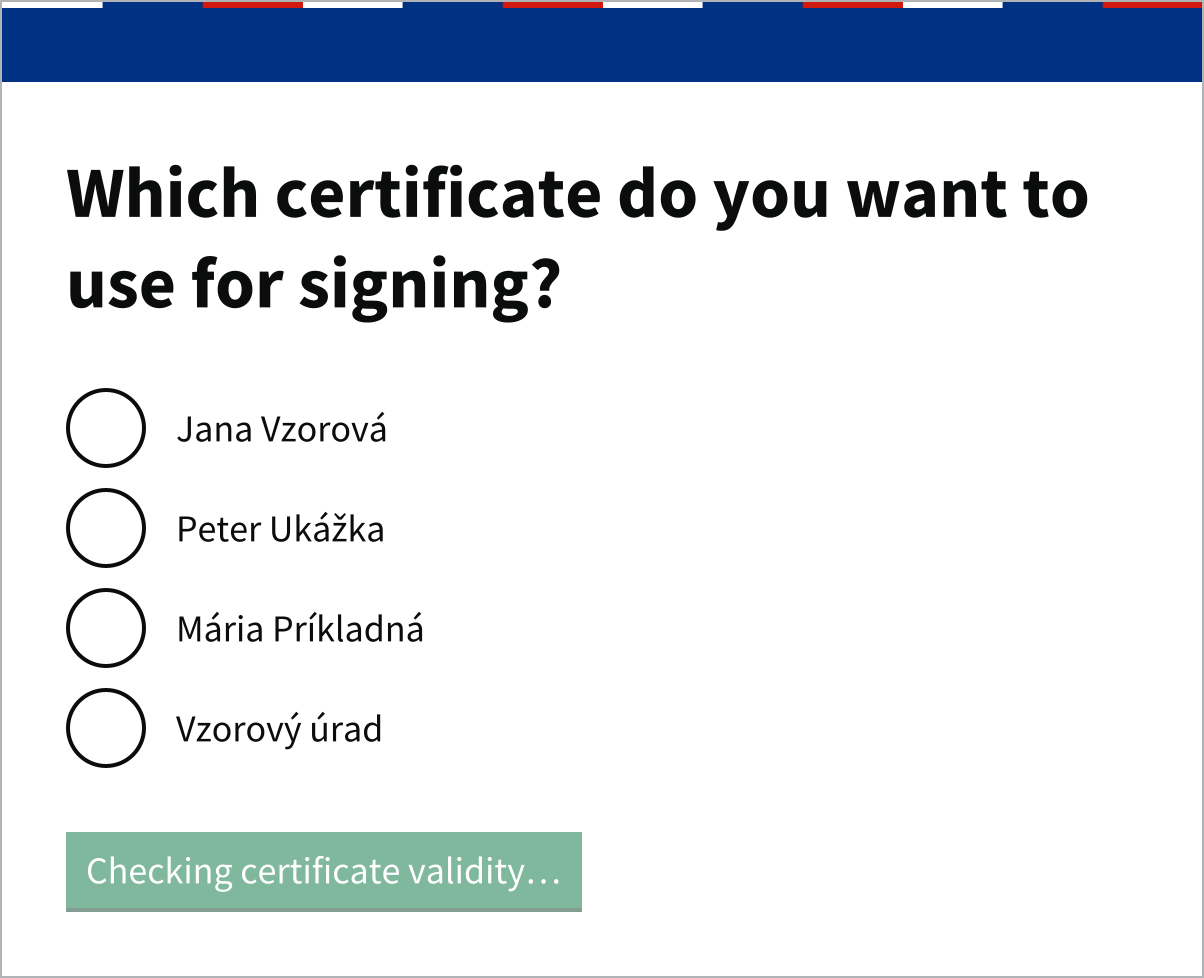
Autogram checks:
- whether the certificate was revoked, for example after the card was lost. It asks the certification authority that issued the certificate, so it needs an internet connection.
- whether the certificate is qualified according to the trusted lists of the countries turned on in Settings. Only a qualified certificate makes a qualified electronic signature.
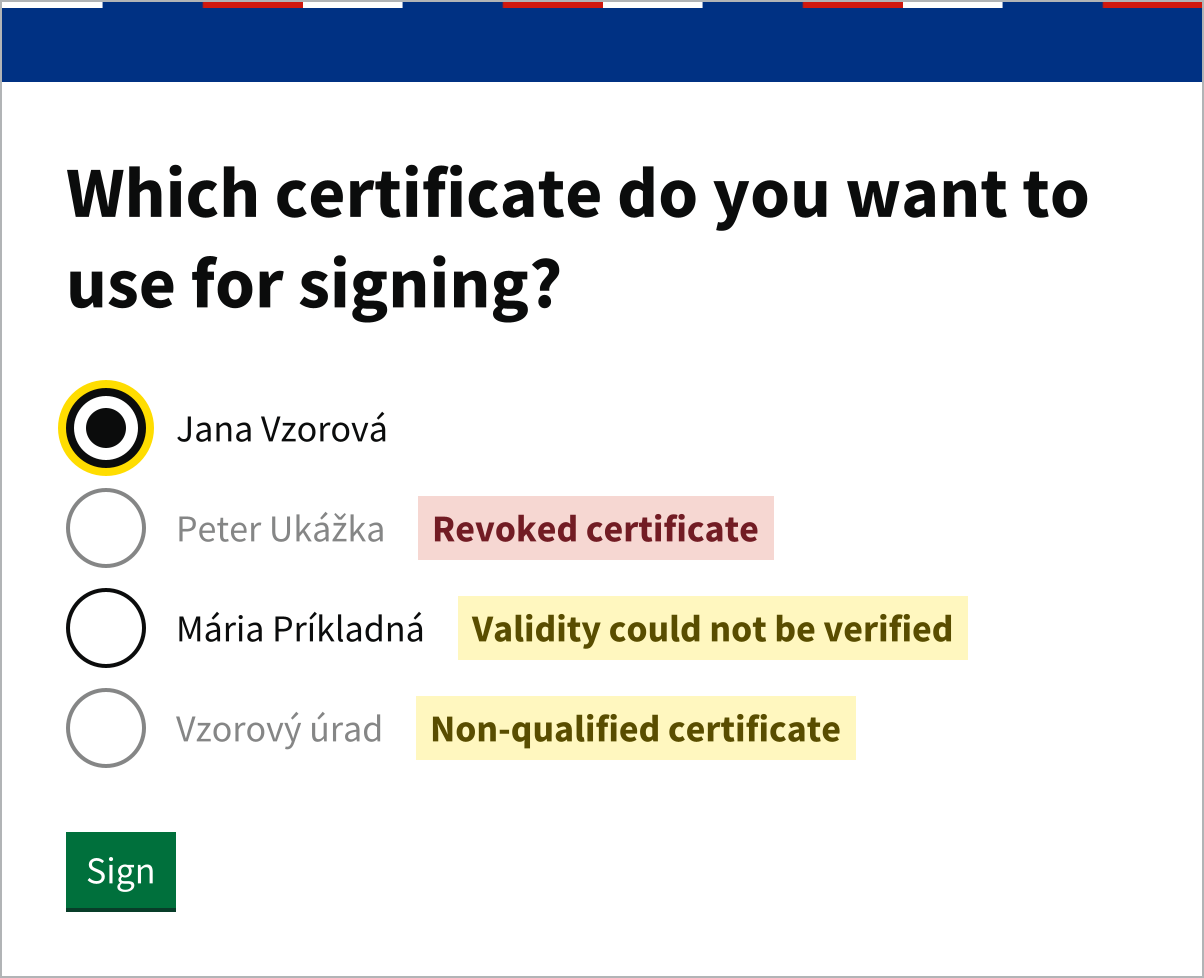
The check usually takes a fraction of a second. Shortly after Autogram starts, it also waits until the trusted lists are loaded, and the button then reads Loading trusted lists…. A valid qualified certificate shows nothing. Otherwise the certificate has a label:
| Label | What it means | Can you sign with it? |
|---|---|---|
| Revoked certificate | The certification authority revoked the certificate. | No |
| Non-qualified certificate | The certificate is not qualified according to the trusted lists. | Only if Allow signing with non-qualified certificates is turned on in Settings |
| Validity could not be verified | Autogram could not find out whether the certificate was revoked, for example without an internet connection. | Yes |
| Qualification could not be verified | The trusted lists could not be loaded, for example when Autogram first starts without an internet connection. | Yes |
| Expired certificate | The certificate has expired. Such certificates are shown only if Allow signing with expired certificates is turned on in Settings. | Yes |
If none of the certificates is qualified, Autogram shows a hint below them with an Open settings link. The most common reason is that the certificate was issued by a certification authority from a country whose trusted list is turned off. Autogram then names that country in the hint. When you close the settings, the certificate selection appears again.
Signing PIN
Finally, you enter the signing PIN, which some cards call QPIN. With all cards except the Slovak ID card, you enter it in Autogram’s window.
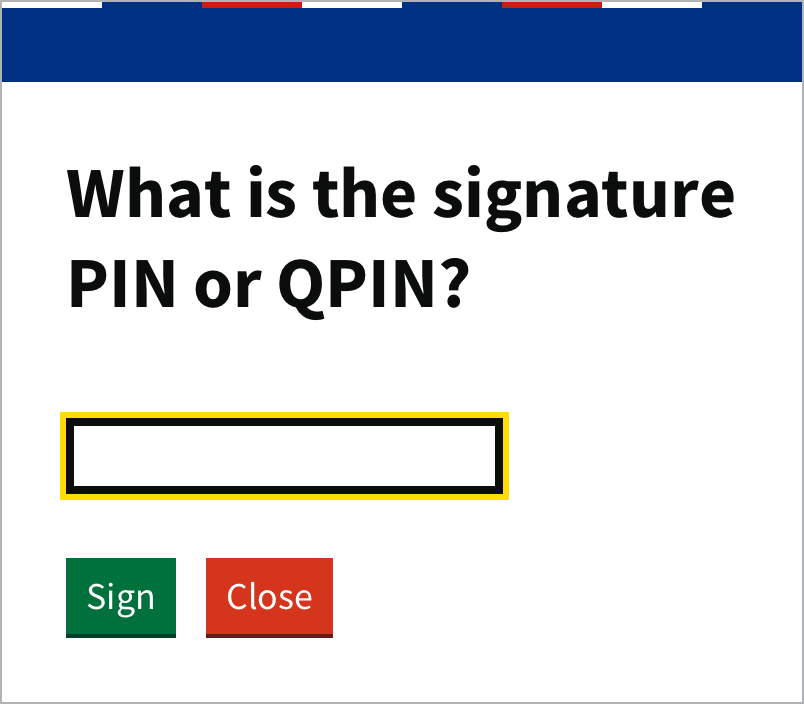
A card locks after several wrong PINs. If you are not sure about your PIN, rather cancel signing.
Slovak ID card
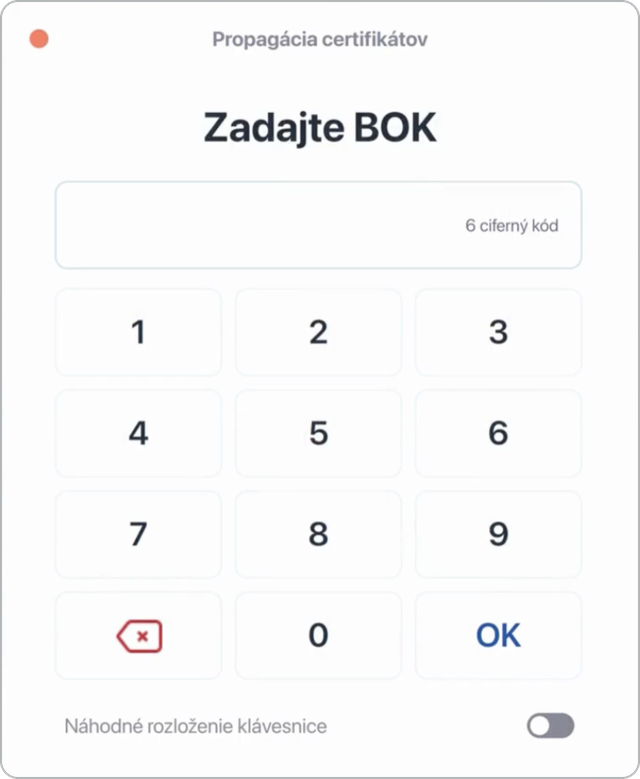
With the Slovak ID card, you enter the codes in the eID client’s window, not in Autogram.
When Autogram connects to the card, the eID client asks for the BOK (security personal code).
When signing, it asks for the signing PIN.
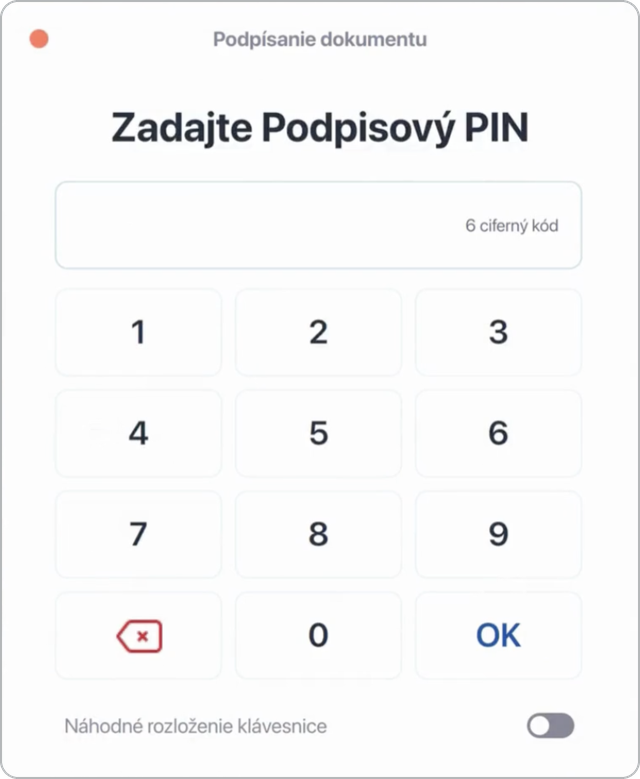
Signing several documents at once is an exception. You then enter the signing PIN in Autogram’s window, so that you enter it only once for all documents.
Further signatures
Autogram remembers the chosen certificate. You sign further documents with the Sign as … button that shows your name, without choosing the card or the certificate again.
After 5 minutes of inactivity the connection to the card is closed and you enter the PIN again for the next signature. You can change this time in Settings.
To sign with another certificate or card, click Sign with another certificate.