Signing a file from your computer
Signing a file from your computer
This is how you sign a file stored on your computer. If you are signing for the first time, rather follow Your first signature step by step, which has a picture for every step. If you are signing on a website, do not open the file in Autogram, the website sends it to Autogram by itself. See Signing on websites.
Opening a file
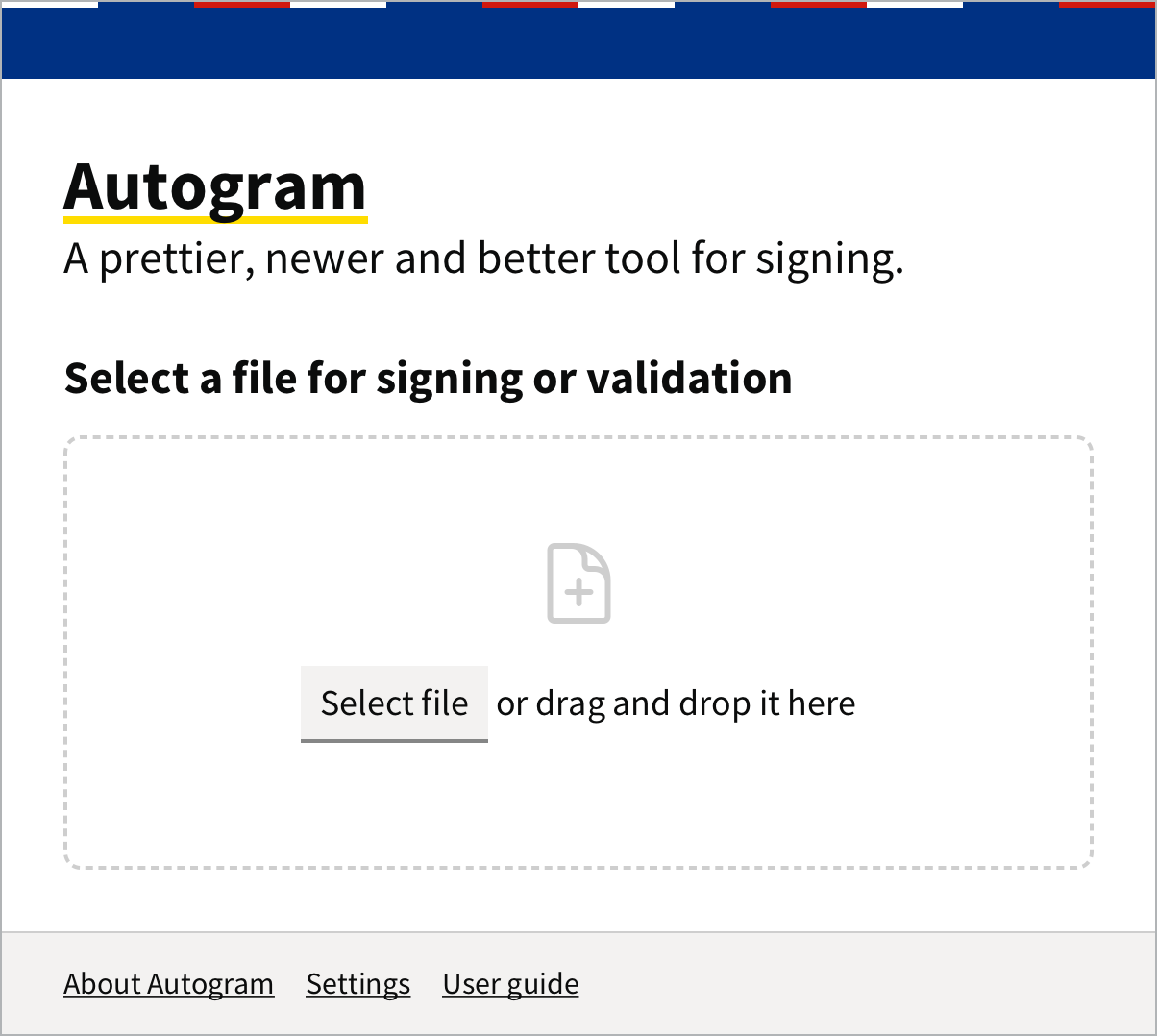
Start Autogram and click Select file, or drag the file into the application window.
If you select several files or a whole folder, Autogram signs them one by one or in bulk, see Several documents at once.
Checking the document
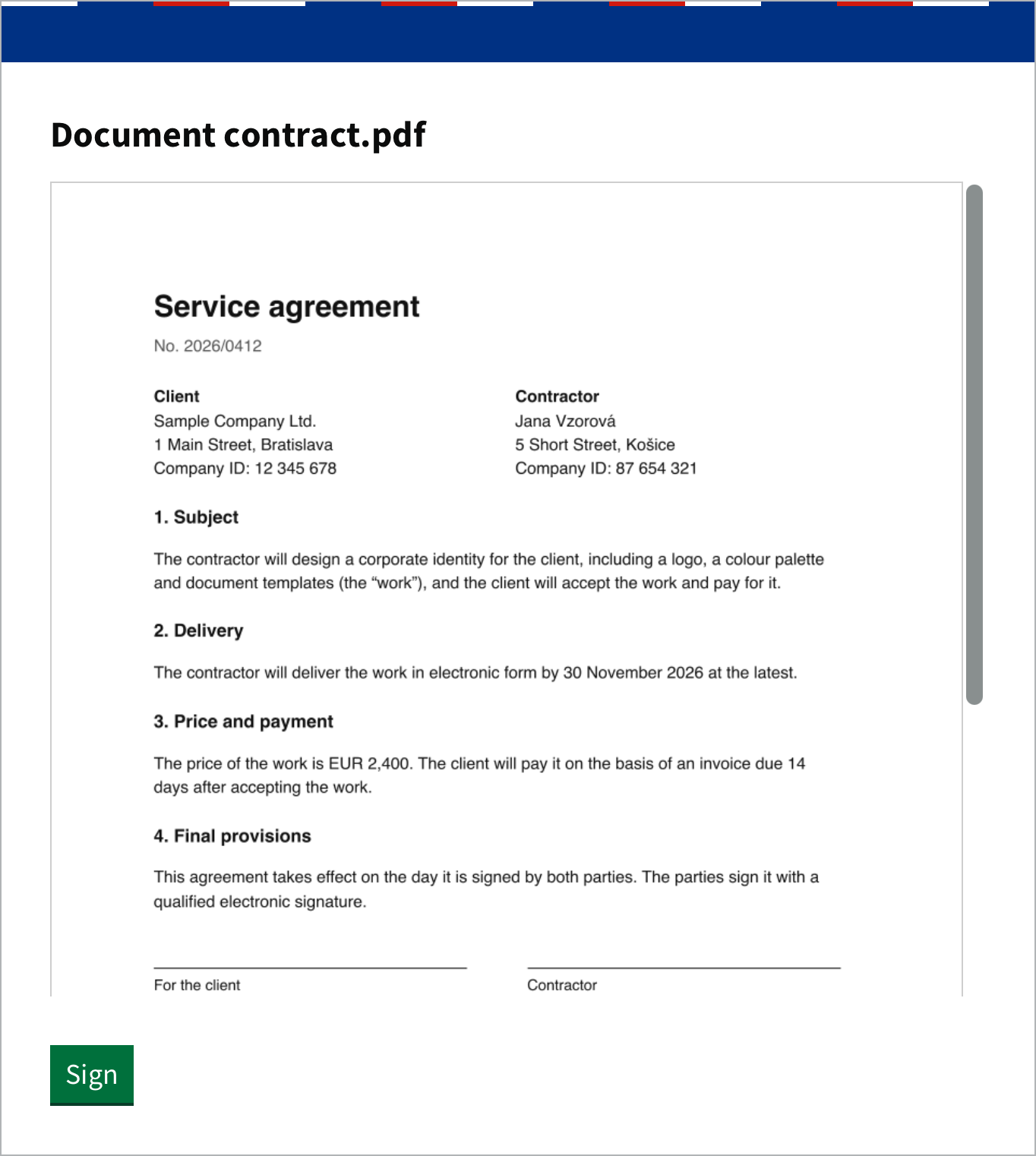
Autogram opens the document in a new window and shows its content. Look through all of it before signing: you sign exactly what you see.
If the document already has signatures, Autogram validates them and shows them below the preview. What they mean is explained in Verifying signatures.
Autogram cannot display some files, such as Word documents. It warns you in that case, see Warnings before signing.
Signing
Click Sign.
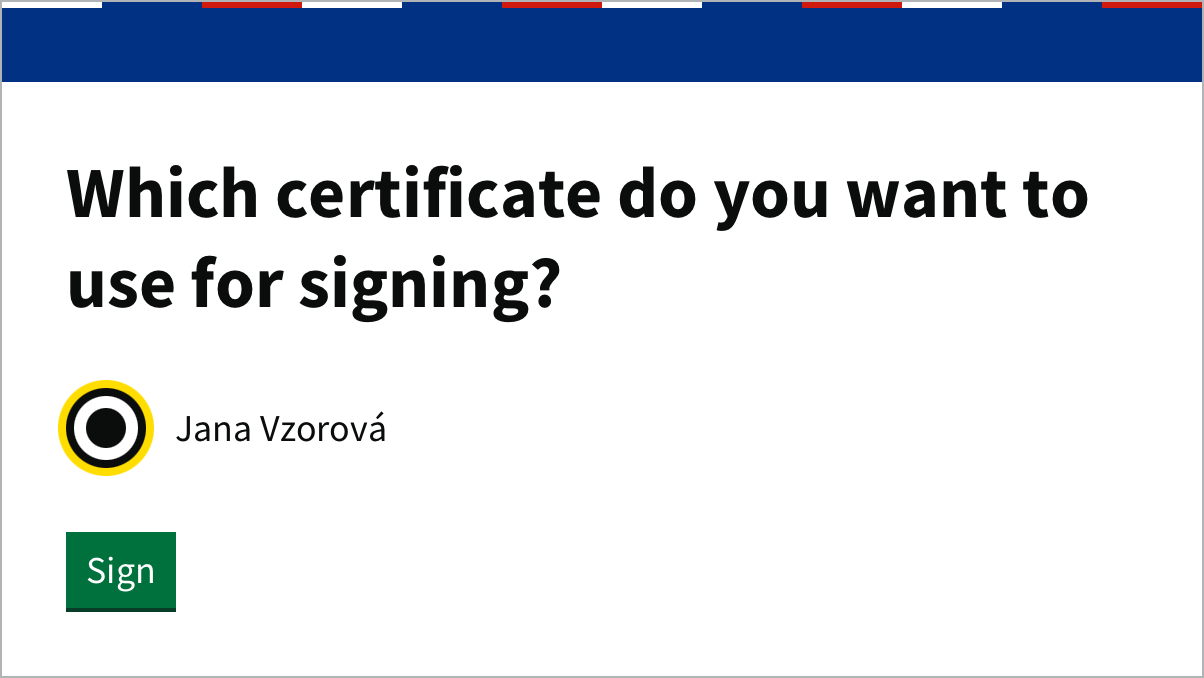
If several cards are connected, choose the one that holds your certificate. Autogram uses a single card it finds by itself.
If Autogram asks for the keystore password, enter your card’s code. If your card has none, leave the field empty.
Choose the certificate and click Sign.
Enter the signing PIN. With a Slovak ID card, you enter it in the eID client’s window.
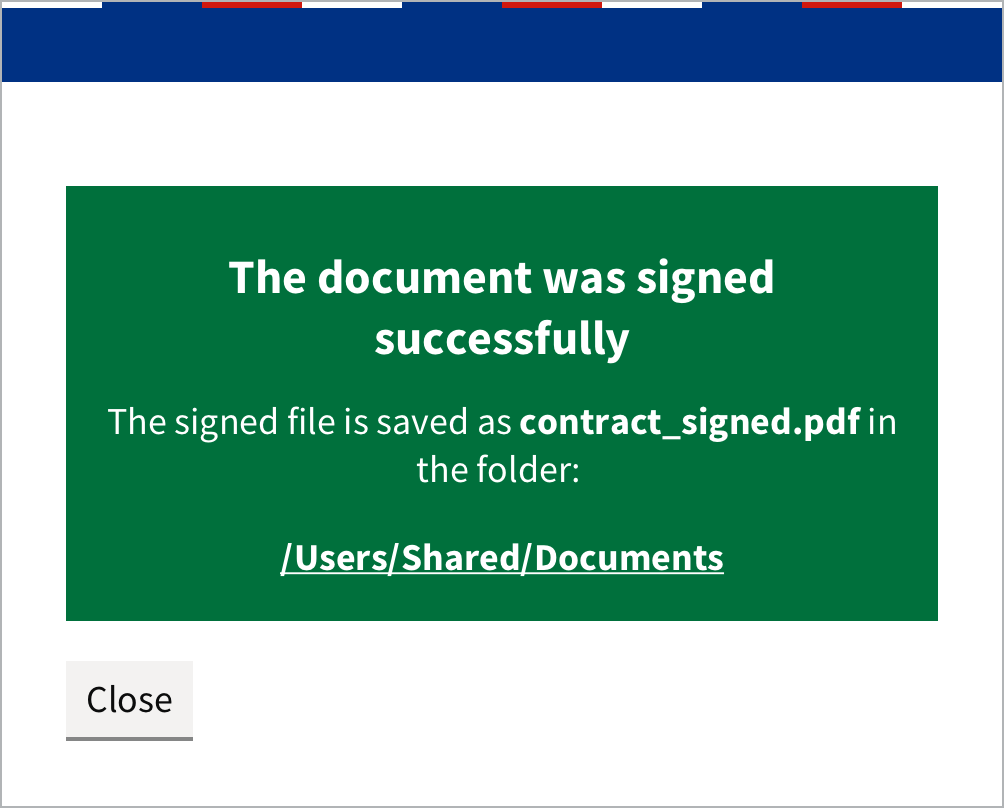
Autogram saves the signed file and shows where to find it. Click the path to open the folder.
Choosing the card, the card’s code and the PIN are described in detail in Choosing a card and entering the PIN.
If timestamps are turned on in Settings, Autogram also adds a qualified timestamp to the signature. See Signature with a timestamp.
Where the signed file is saved
The signed file is saved in the same folder as the original document, with _signed added to its name. The original file stays unchanged.
| You sign | You get |
|---|---|
contract.pdf |
contract_signed.pdf with the signature inside the PDF |
application.xml, photo.png, offer.docx and other files |
application_signed.asice and so on, a container holding the document and the signature |
| an already signed file | a file of the same type with your signature added |
If a file with that name already exists, Autogram adds a number, for example contract_signed (1).pdf. Some authorities require a different signature type for PDFs, which you can change in Settings. Why you sometimes get a PDF and sometimes an ASiC-E container is explained in Formats and signature types.
The next document
While the connection to the card is active, you sign the next document with one click on Sign as … with your name.
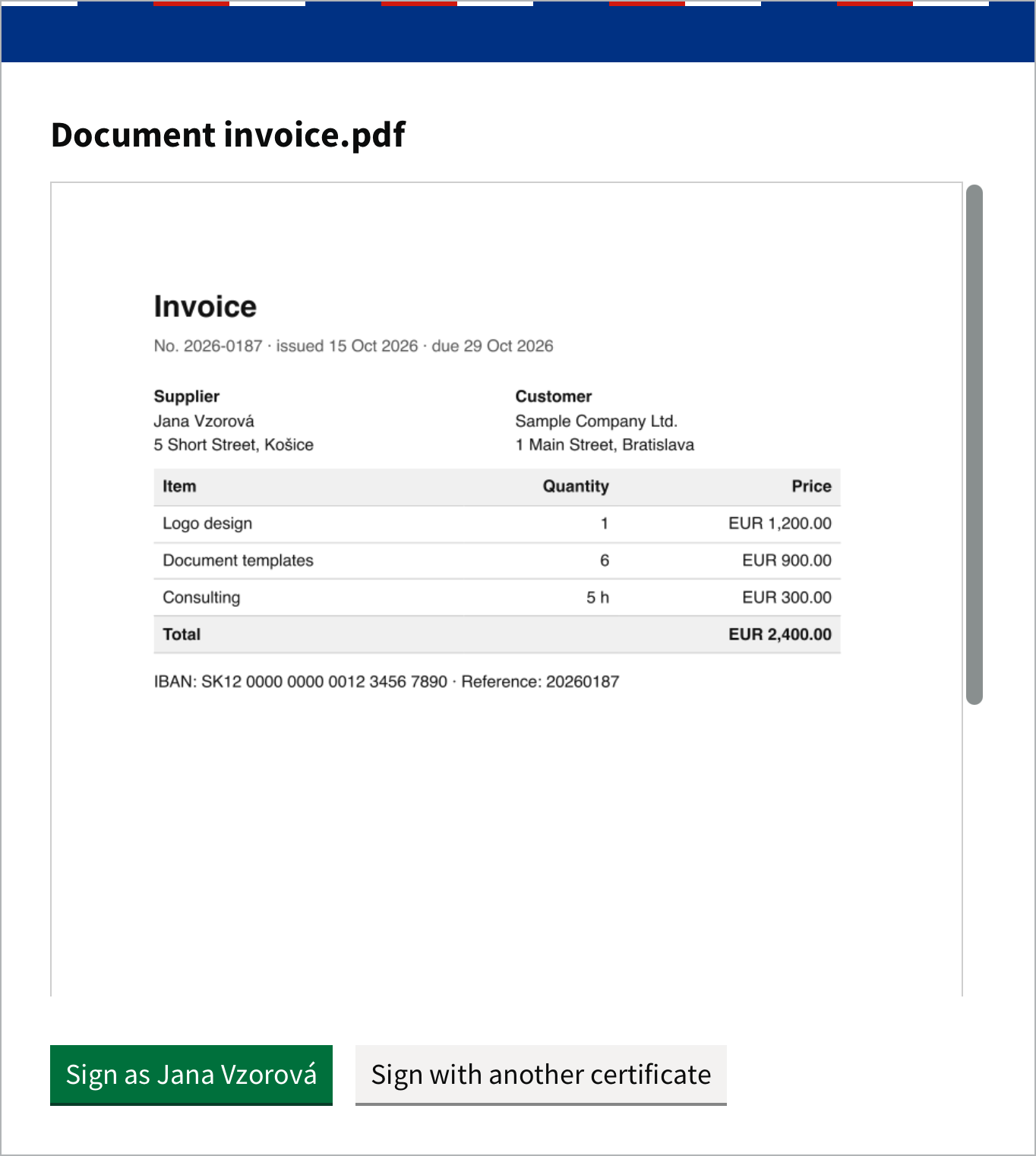
Sign with another certificate lets you choose another certificate or card.
Cancelling
To cancel signing, close the document window. No signature is made until you enter the PIN.