Installation
Installation
Autogram is free for Windows, macOS and Linux.
Download AutogramWindows
On Windows, install Autogram from Microsoft Store. Microsoft Store then installs new versions automatically.
Autogram in Microsoft Store- Open Autogram in Microsoft Store and click Get.
- When it is installed, click Open. You will then find Autogram in the Start menu.
You can also install Autogram from Microsoft Store on the command line with winget, which comes with Windows 10 and 11:
winget install --id 9N4XBDWNF438 --source msstore
The first time you use the msstore source, winget asks you to accept the Microsoft Store terms. Autogram installed this way is the same as from the Microsoft Store app and is updated automatically.
If Microsoft Store is not available on your computer, for example because your company’s administrator disabled it, the download page also has an .msi installer. Download it, run it and follow the installation wizard. Autogram installed this way is not updated automatically.
If you already have Autogram installed from an .msi file, see Moving to the Microsoft Store version.
For administrators: installing in a company
If you manage several computers, we recommend deploying the Microsoft Store version, which Microsoft Store then updates automatically. It requires Windows 10 version 1809 or later.
Microsoft Intune: add an app of the Microsoft Store app (new) type and search for Autogram or enter the ID
9N4XBDWNF438. If Autogram should be available to all users of the computer, set Install behavior to System.Scripts and other device management tools: install Autogram without prompts with:
winget install --id 9N4XBDWNF438 --source msstore --accept-package-agreements --accept-source-agreements
Use the .msi installer when you cannot deploy the Microsoft Store version, for example when:
- you install software with Group Policy in Active Directory, which supports only
.msipackages, - the computers run Windows LTSC, which includes neither Microsoft Store nor
winget, - the
msstoresource inwingetis disabled by a policy, - the computers cannot reach the Microsoft Store servers, for example on a network without internet access.
The autogram-…-windows.msi installer is on the download page. Install it without prompts with:
msiexec /i autogram-…-windows.msi /qn
Autogram installed from an .msi file is not updated automatically, deploy new versions the same way.
macOS
- Find out which processor your Mac has: in the Apple menu choose About This Mac. If Chip shows Apple M…, download
macos.pkg; with an Intel processor, downloadmacos-intel.pkg. - Open the downloaded file and follow the installer. It may ask for your administrator password.
- Autogram is installed in the Applications folder.
Linux
Install the package with your distribution’s package manager, for example:
sudo apt install ./autogram-…-ubuntu.deb    # Ubuntu
sudo apt install ./autogram-…-debian.deb    # Debian
sudo dnf install ./autogram-…-fedora.rpm    # Fedora
Card software
To sign, you also need the software for the card that holds your certificate. For a Slovak ID card, that is the eID client. The cards and their software are described in Cards and certificates.
Browser extension
To sign on Slovak government websites, such as slovensko.sk or the Financial Administration portal, also install the Autogram browser extension. See Signing on websites for details.
First start
When Autogram starts, its main window appears. From there you open a file to sign or verify and get to the settings.
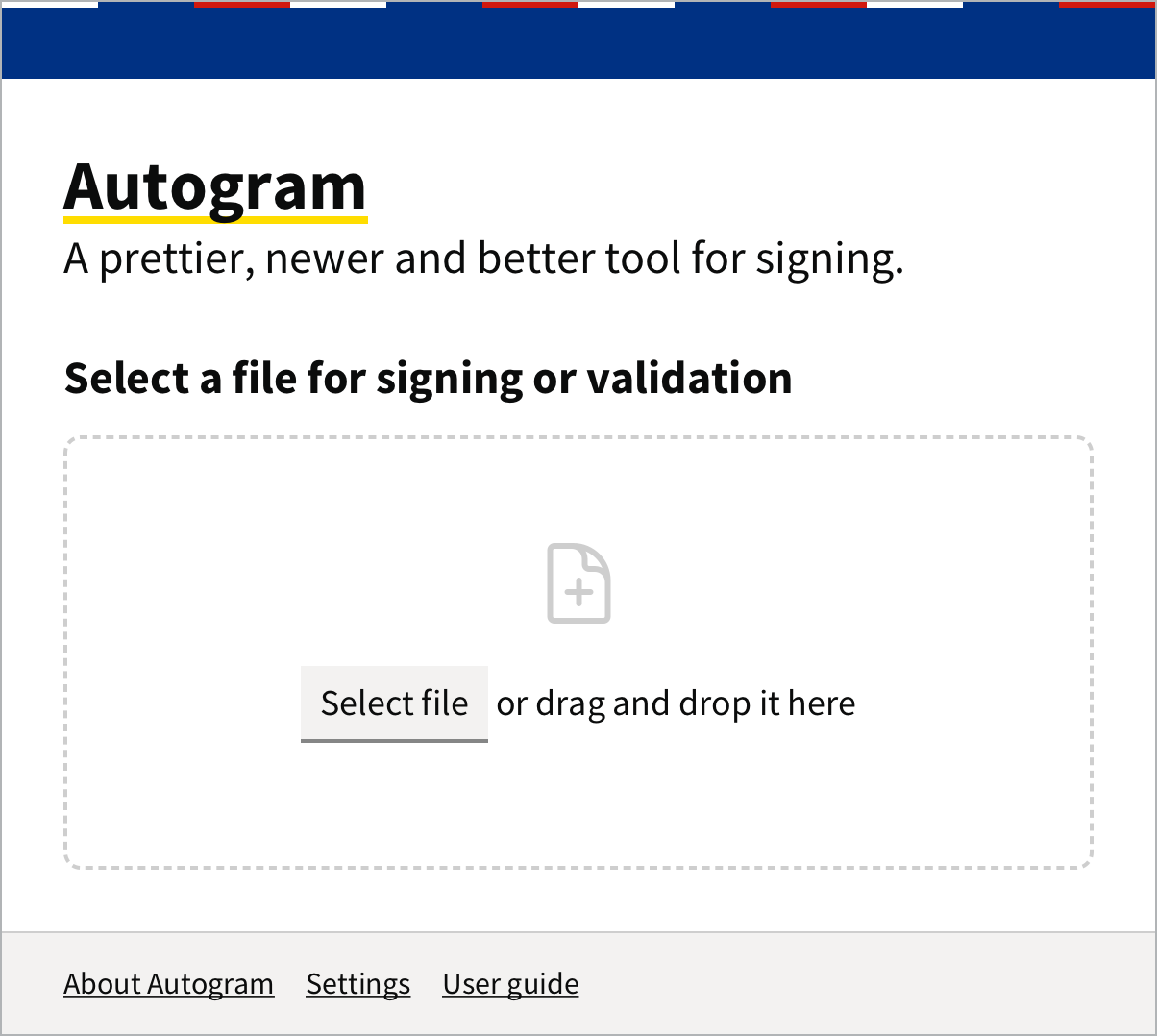
Websites can also start Autogram by themselves. If only the main window appears after a website started Autogram, do not open anything in it and wait a moment until the website sends the document. See When Autogram is not running yet.
Updates
Autogram from Microsoft Store is updated by Microsoft Store automatically, you do not have to do anything.
On macOS, on Linux and when installed from an .msi file, Autogram checks whether a new version is available when it starts. If so, it shows the Update available window:
- Download new version opens the download page in your browser,
- Later closes the window and you can keep using Autogram.
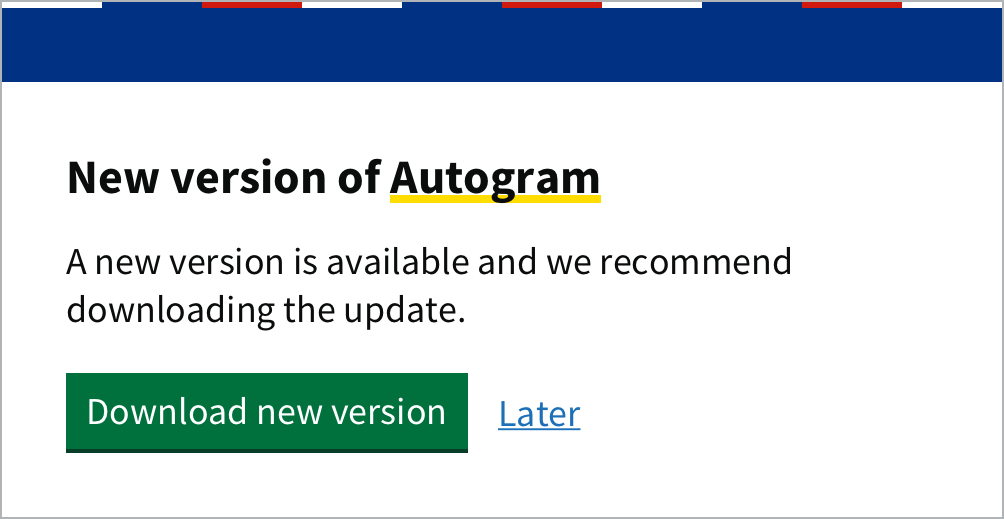
Install the new version the same way as the first one. Your settings are kept.
On Windows, from version 2.8 the window offers Install from Microsoft Store instead of the download. The Find out more link opens the download page. The next steps are in Moving to the Microsoft Store version.
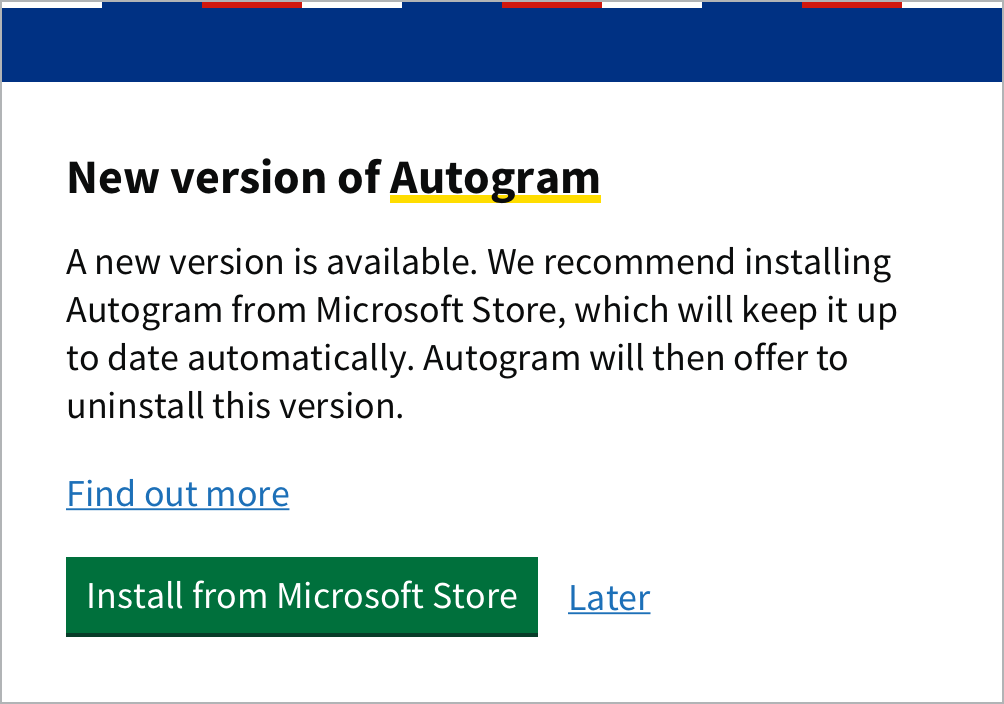
Moving to the Microsoft Store version
Up to version 2.7, Autogram for Windows was installed from an .msi file and you had to download and install every new version yourself. From version 2.8, Autogram is in Microsoft Store, which updates it automatically. If you have Autogram from an .msi file, we recommend moving to the Microsoft Store version. It takes a few minutes.
When it starts, the older version of Autogram shows the Update available window. Click Download new version and continue to Microsoft Store from the page that opens in your browser. You can also open Autogram in Microsoft Store directly with this link.
In Microsoft Store, click Get and, when it is installed, Open. You do not have to close the older version, the new one closes it when it starts.
The new version finds the older one on your computer and shows the Older version of Autogram window. Click Uninstall older version.
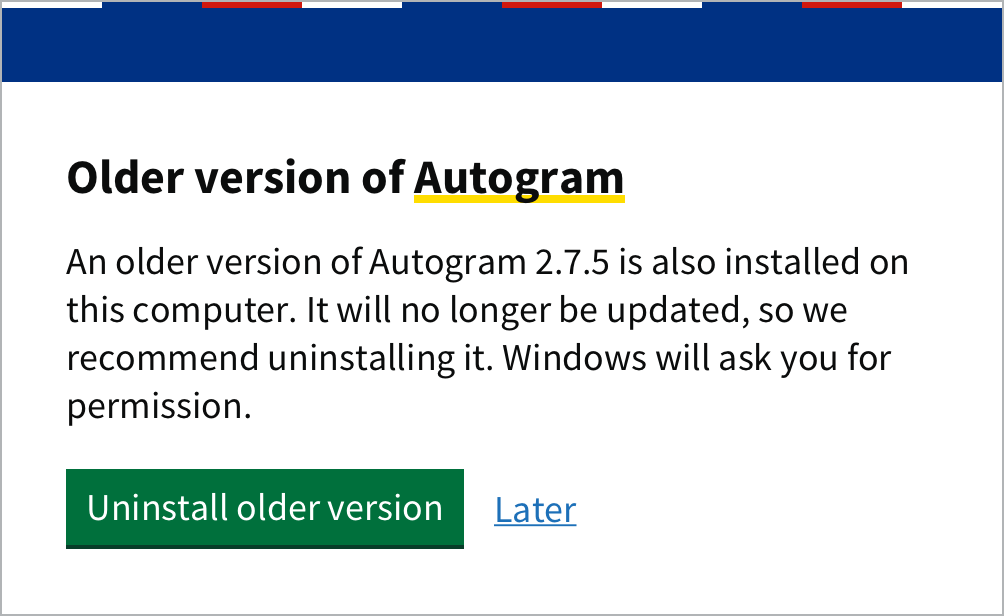
Windows asks whether you allow Windows Installer to make changes to your device. Click Yes. If you are not an administrator of the computer, Windows asks for an administrator’s password.
When the older version is uninstalled, the window closes. From now on you use the Microsoft Store version.
What changes
- Your settings are kept. The new version takes over the settings of the older one, such as the language, the signature type or the timestamp server.
- Signing on websites keeps working. Websites and the browser extension start the new version, there is nothing to set up.
- Updates are automatic. The Update available window no longer appears, Microsoft Store installs new versions.
- Pins move over. If you had Autogram pinned to the taskbar or to the Start menu, the new version is there after the installation.
- The desktop icon disappears. The older version removes it when it is uninstalled and the Microsoft Store version does not create one. If you want it, drag Autogram from the Start menu to the desktop.
- The
autogram-clicommand works in any terminal, see Command line (CLI).
If you do not uninstall the older version right away
- After you click Later, the Older version of Autogram window appears every time Autogram starts, until you uninstall the older version. Until then, you see Autogram twice in the Start menu.
- You can also uninstall the older version yourself: in Windows Settings under Apps, select Autogram with version 2.7 or lower and choose Uninstall.
- If you do not open the new version after installing it, websites keep using the older one until you close it or restart the computer. After that they start the new version, which offers to uninstall the older one.