Several documents in one container
Several documents in one container
An ASiC-E container (.asice extension) can hold several documents that are signed together. In Slovakia this is also called shared authorization of documents (spoločná autorizácia). Autogram displays such a container, validates its signatures and adds your signature to it.
Opening a container
- Start Autogram.
- Click Select file or drag the
.asicefile into the application window.
A website or another application (for example Autogram Portal) can also send a container to Autogram; the signing window then opens by itself.
Documents in tabs
When the container holds more than one document, one tab per document appears above the preview. Autogram always opens the first document. To see the others, click their tab or use the keyboard (Tab and the arrow keys).
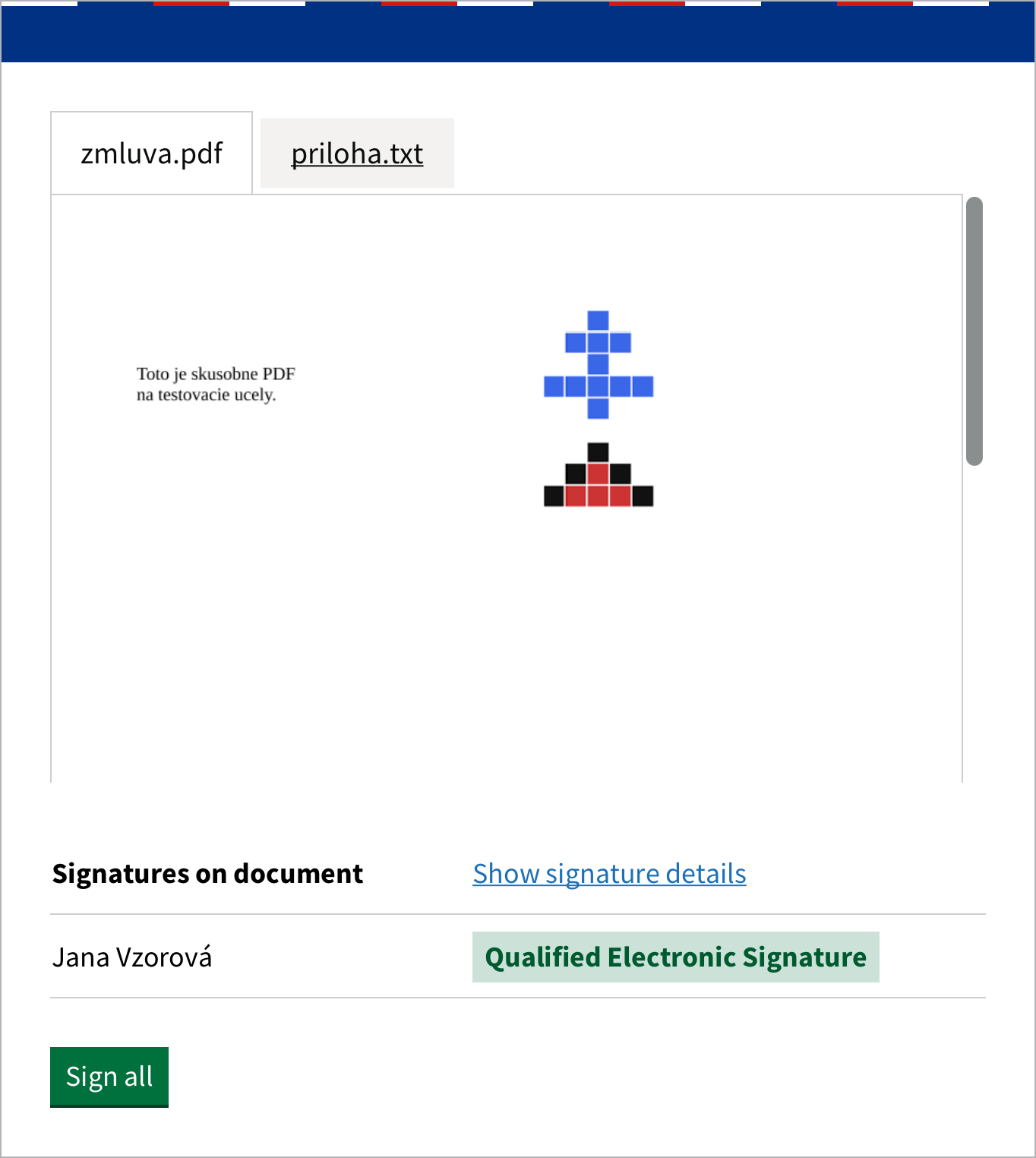
- A long file name is shortened in the tab; hover over the tab to see the full name.
- A document without a name is shown as “Document 1”, “Document 2” and so on.
- Each document is shown in its own format: PDF, image, text or XML form. Slovak government forms (XML Data Container) are shown in a human-readable form.
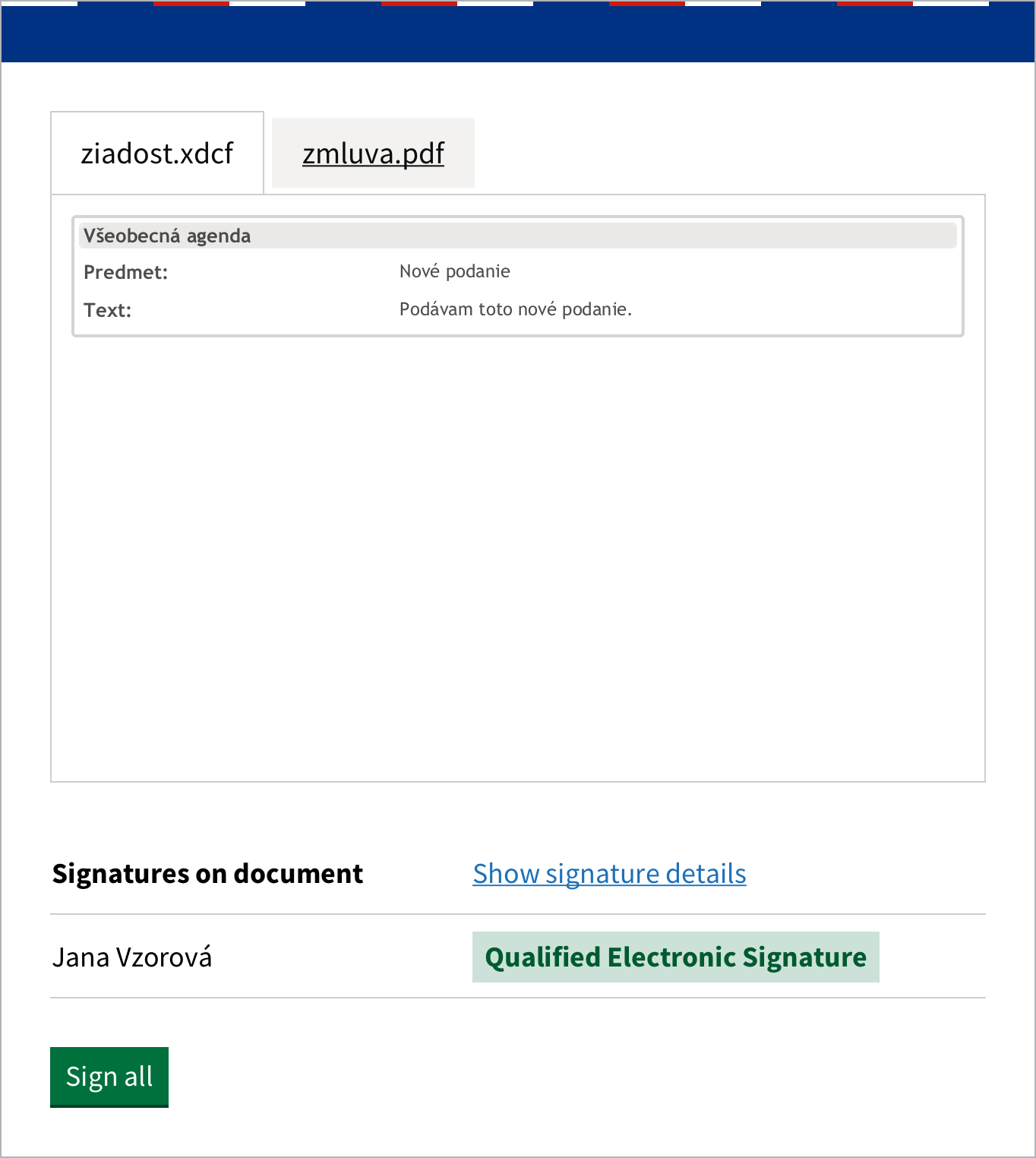
Look through all tabs before signing. Your signature confirms the content of every document in the container, not only the one you are looking at.
Signatures in the container
When the container already has signatures, Autogram validates them and shows the signatures of the document in the selected tab below the preview.
If a signature does not cover all documents in the container, the warning Signatures are not the same across all documents. appears. It means that a signer signed only some of the documents. Check the signatures in each tab and consider whether you want to continue.
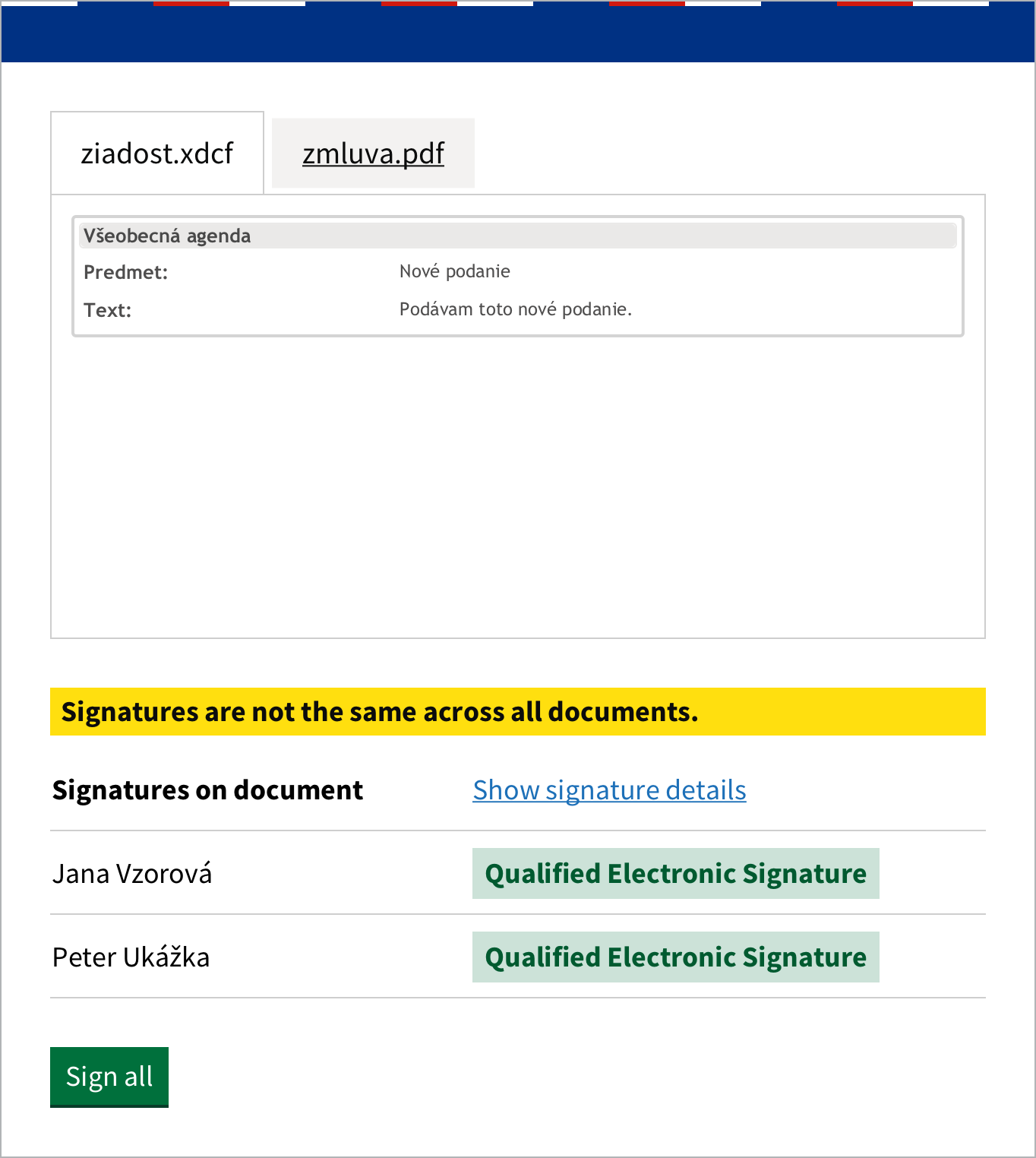
Open the signature details with Show signature details.
Signing
Autogram always signs all documents in the container with one signature. Signing only some of the documents is not possible.
- When you opened an existing container, the Sign button adds your signature to the container.
- When a website sent several separate documents for signing, the button reads Sign all (after choosing a certificate, Sign all as …). Autogram creates one new ASiC-E container from them.
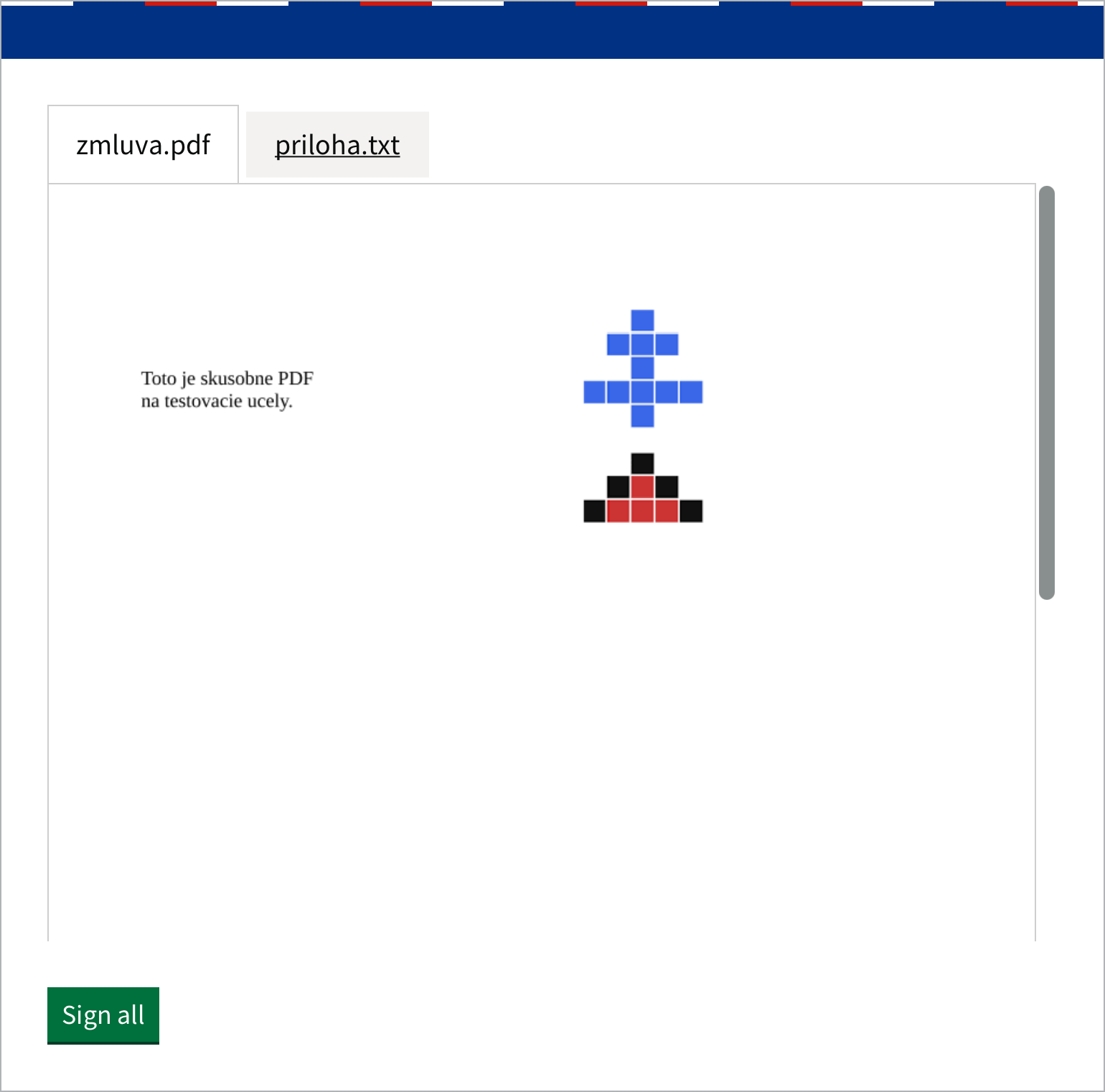
If you opened the container from a file, Autogram saves the signed container after signing and shows where to find it. If a website sent the documents, the signed container is returned to it.